
系列文章:
SpringBoot + Vue前后端分离项目实战 || 一:Vue前端设计
SpringBoot + Vue前后端分离项目实战 || 二:Spring Boot后端与数据库连接
SpringBoot + Vue前后端分离项目实战 || 三:Spring Boot后端与Vue前端连接
SpringBoot + Vue前后端分离项目实战 || 四:用户管理功能实现
SpringBoot + Vue前后端分离项目实战 || 五:用户管理功能后续
文章目录
B站视频讲解:2023全网最简单但实用的SpringBoot+Vue前后端分离项目实战
不想看视频可浏览此文章笔记,比较详细
环境配置
Nodejs: 8.17.0
Vue: 3.11.0
Maven: 3.6.0
Java版本: 1.8.0_371
MySQL: 5.5_56
Redis: 5.0.14
一般推荐使用低版本,因为高版本兼容低版本,反之不行
开发工具
IDEA 2021(后端)
VScode(前端)
下载Vue前端模板
https://panjiachen.gitee.io/vue-element-admin-site/zh/guide/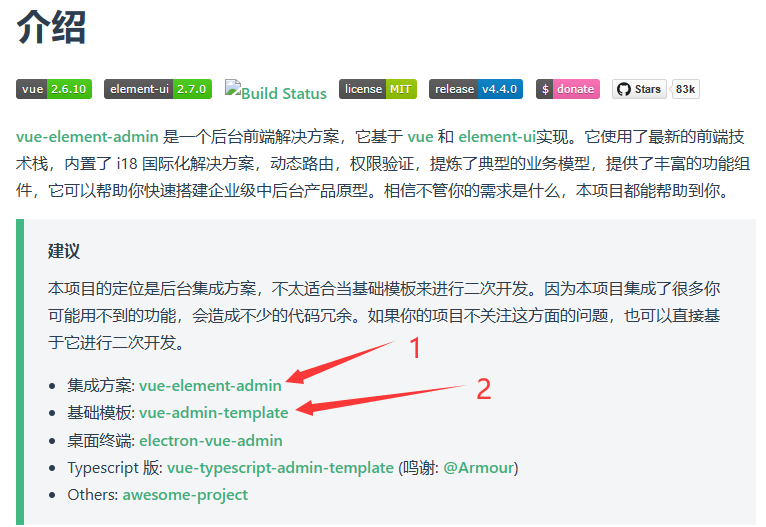
此处建议下载1和2,项目主要基于2开发,但是会拓展一个前端功能需要用到1里面的代码
选择2后,可下载其他版本,此处我下载的是
v3.0.0
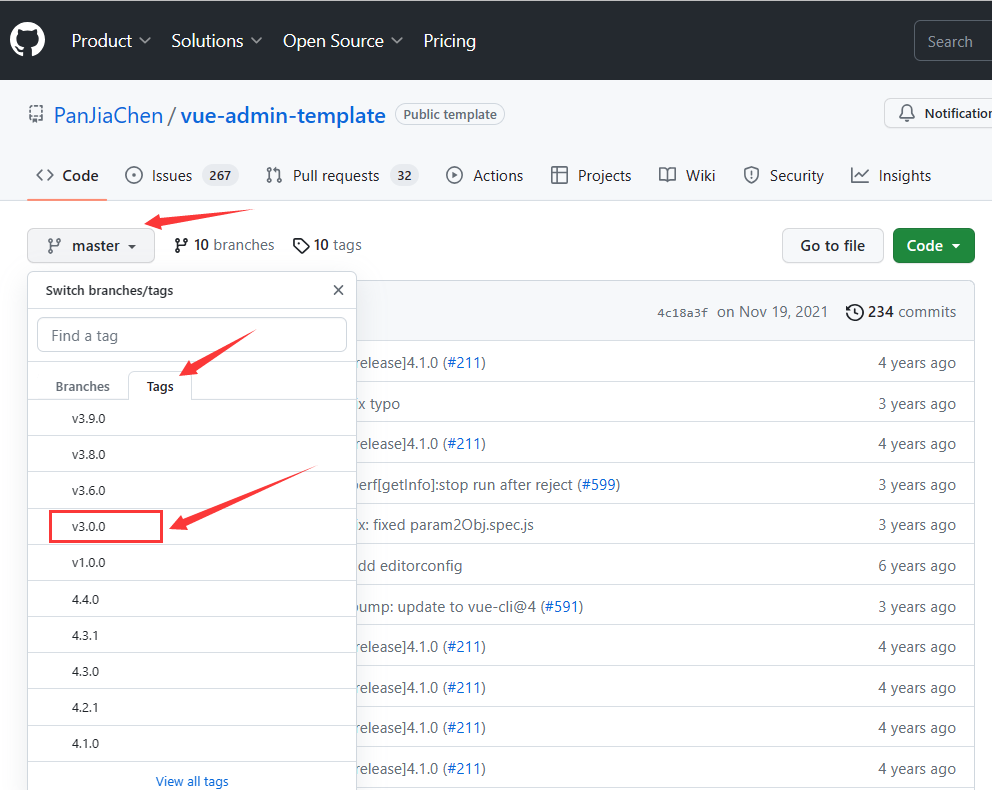
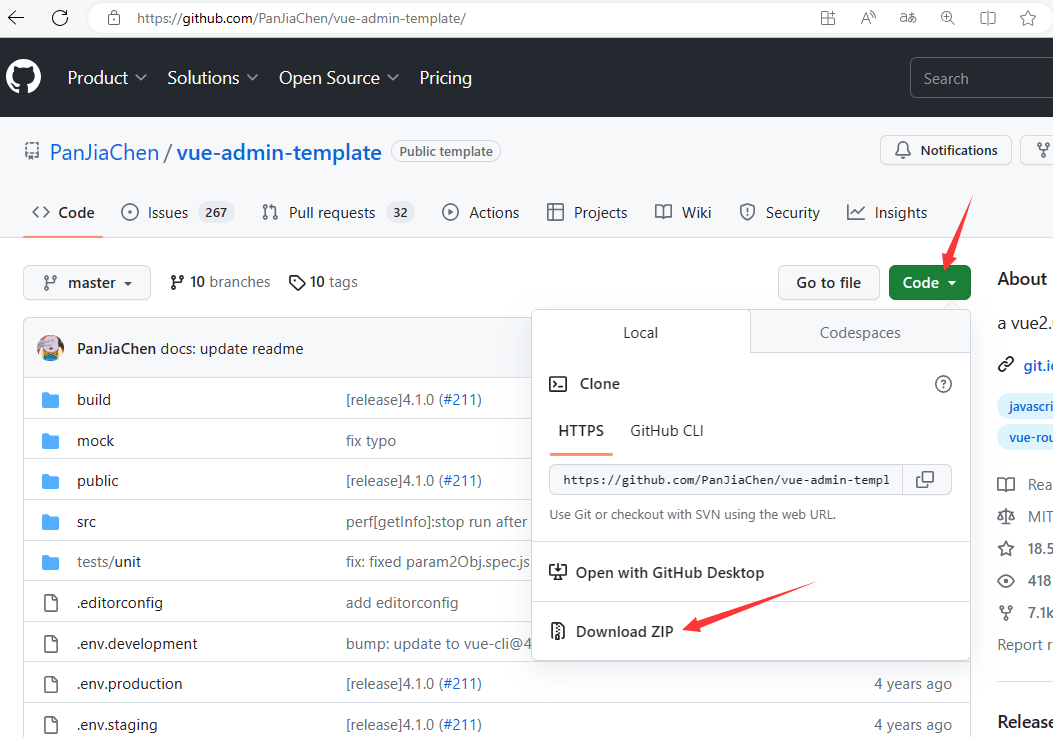
下载完成后将
第2个基础模版
解压到任意能找到的目录(不推荐目录中包含中文字符)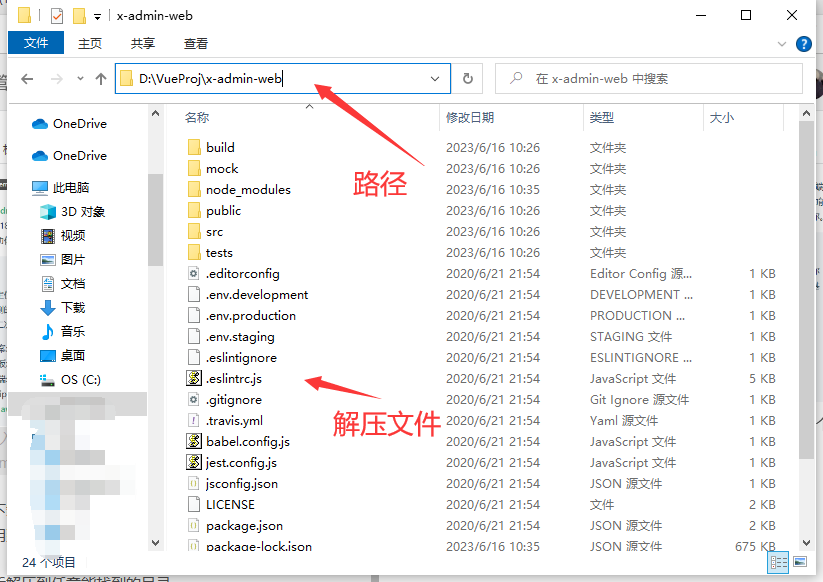
打开VScode,
选择 文件 -> 打开文件夹
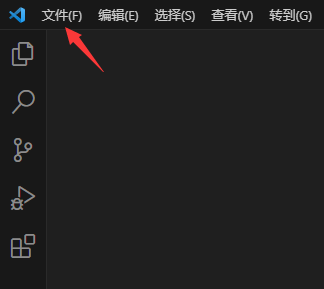
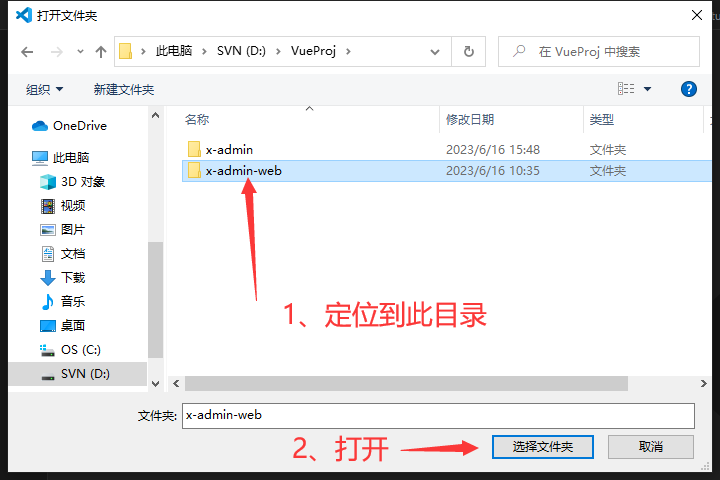
如下图 打开成功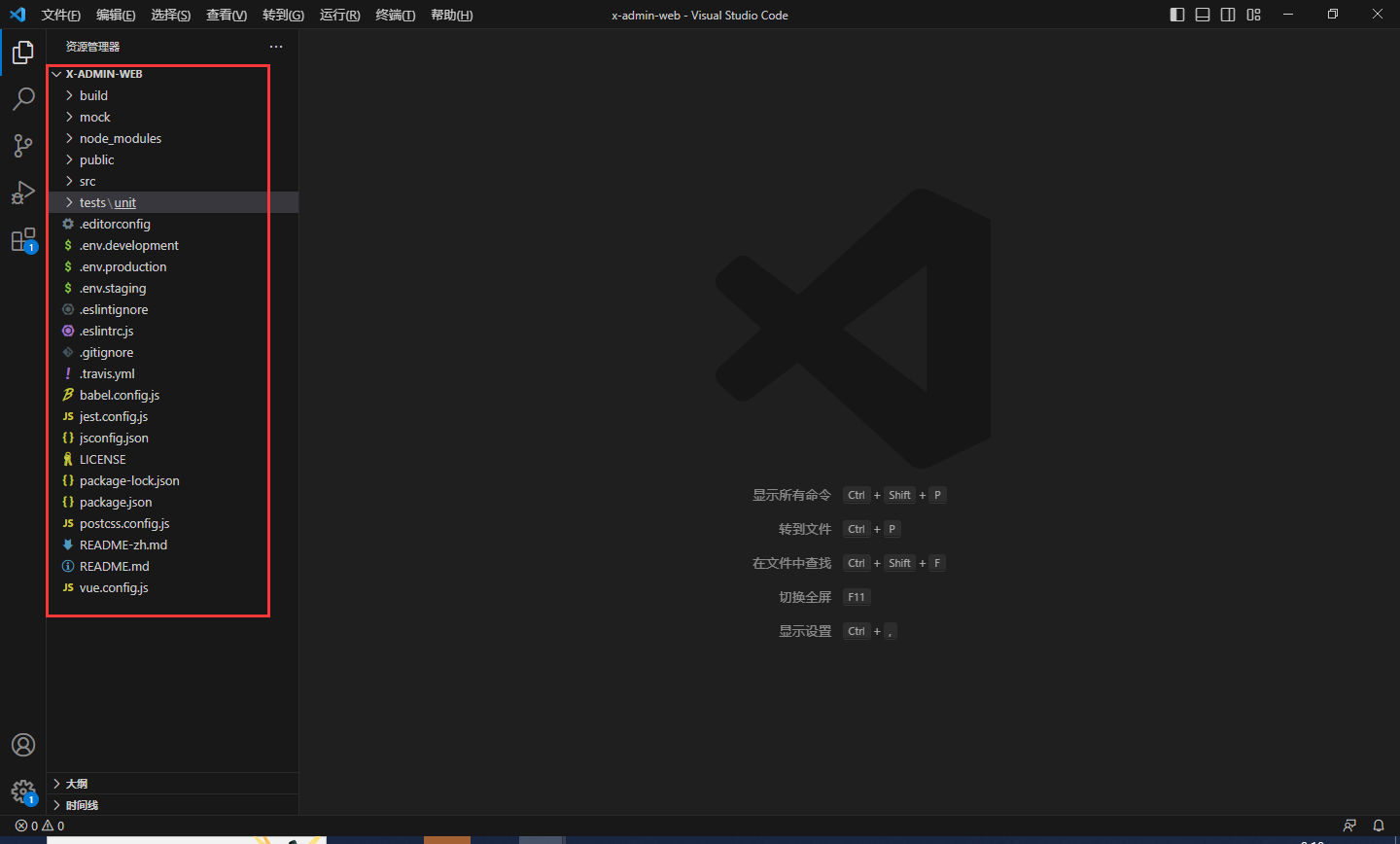
前端项目启动
打开集成终端,一定要定位到
package.json
级别的目录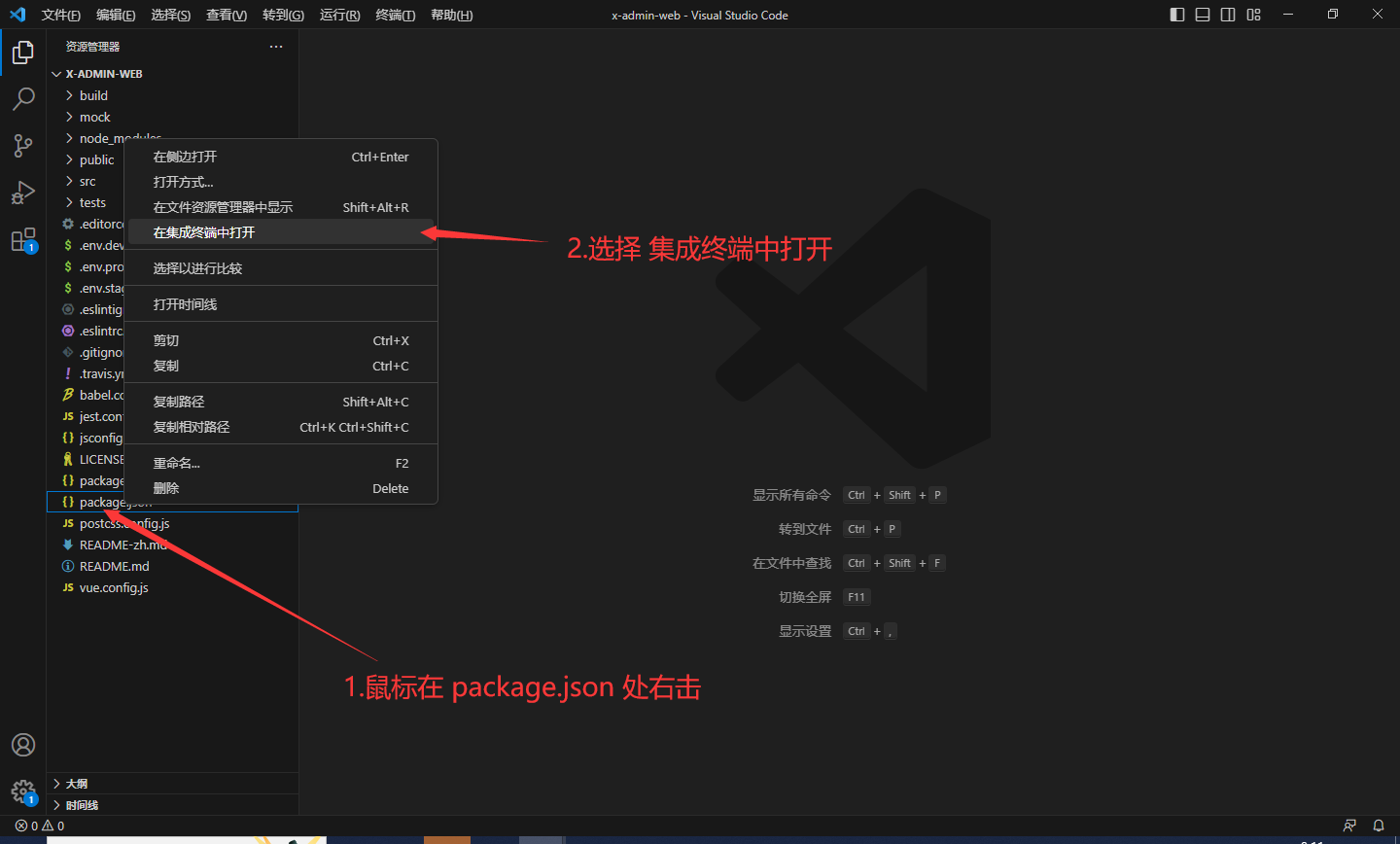
然后终端输入命令
npm install
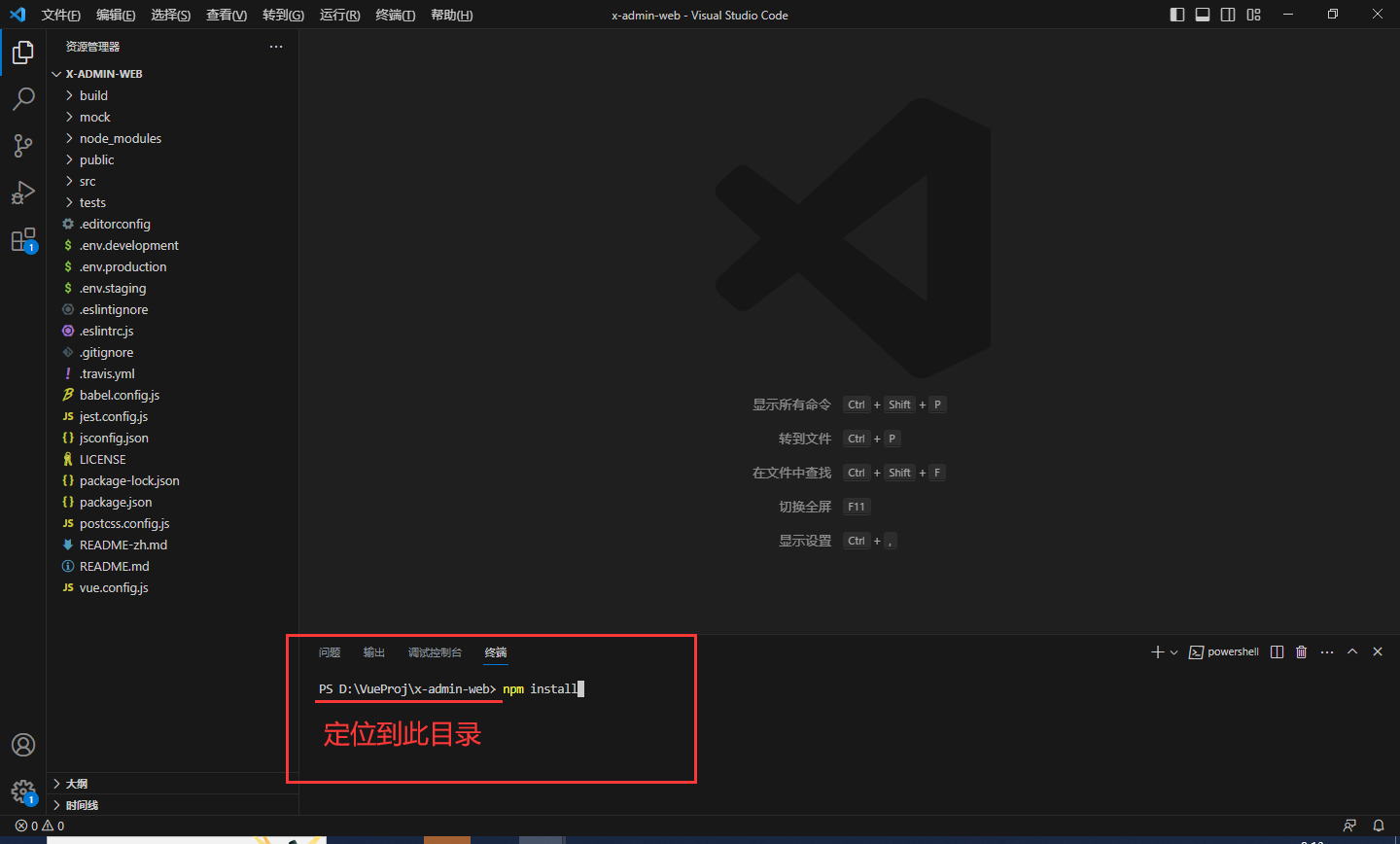
会自动下载项目的依赖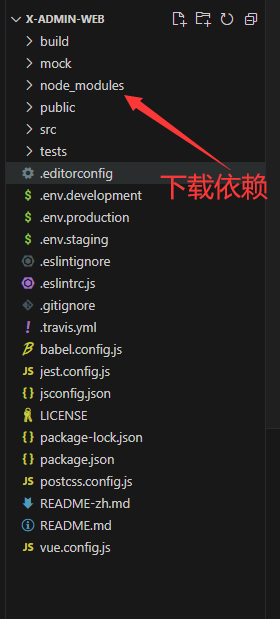
依赖下载完毕后 启动项目,运行命令
npm run dev
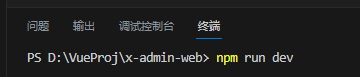
出现以下信息表示成功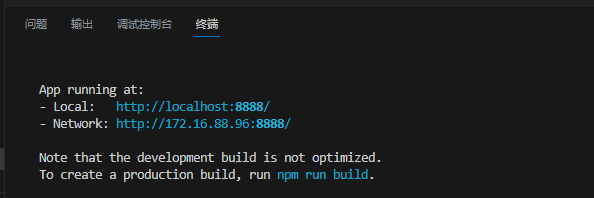
打开链接即可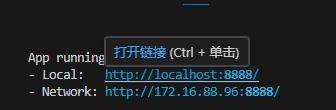
前端说明及修改
前端的总体配置在文件
vue.config.js
中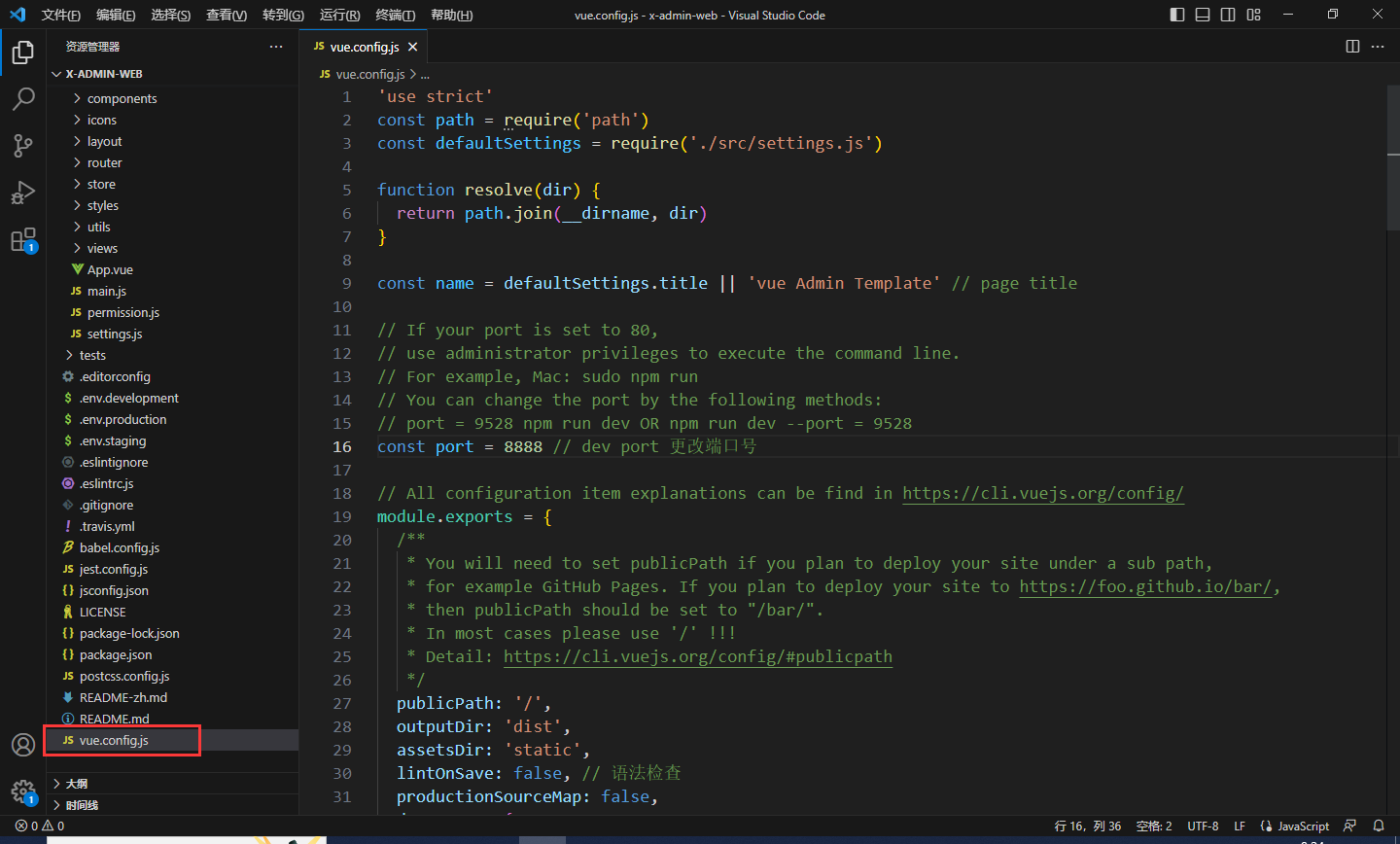
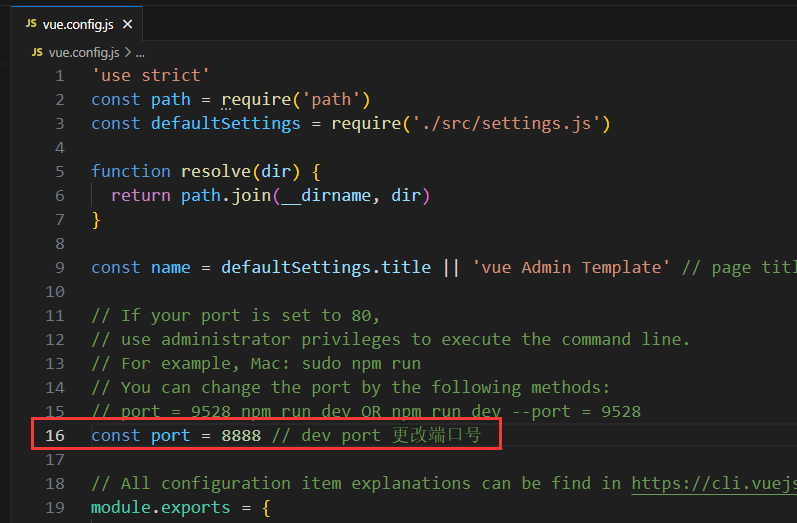
第16行 是端口号,可修改,此处我修改为
8888
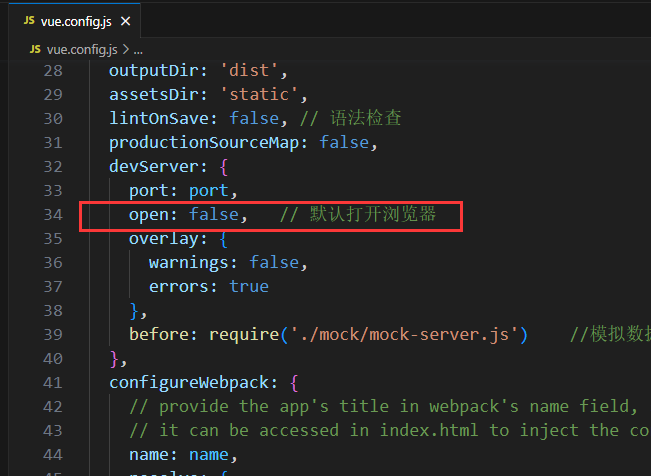
第34行 为是否启动项目就默认打开浏览器,因为vue支持热修改,并不用每次改完前端就需要重新启动,改完保存后前端页面就自动修改,所以此处设为
false
所有的页面保存在
src/views
文件夹中,此处的
view
文件夹被我修改过,稍后说明修改流程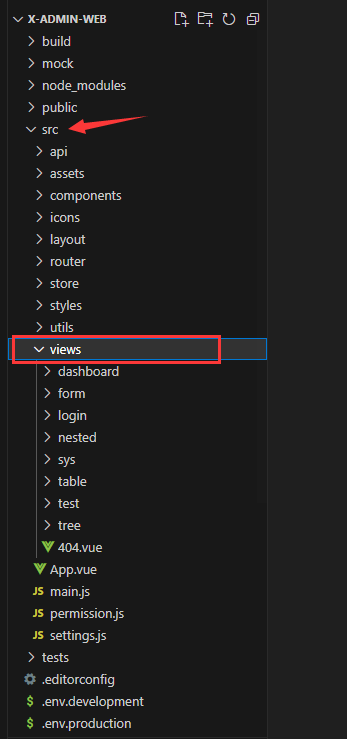
先修改登录页面
src/views/login/index.vue
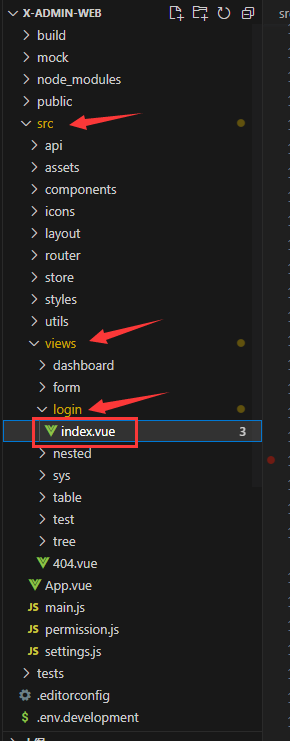
定位到第6行,修改
title
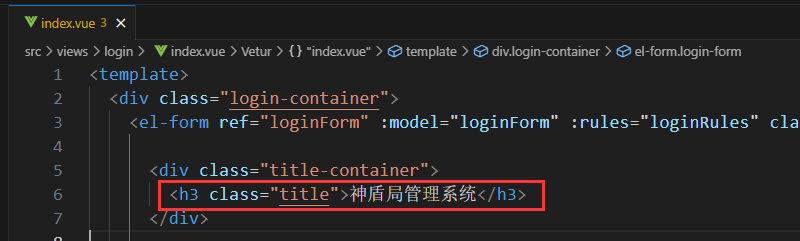
定位到 187行,修改背景图,此时你需要找到一张背景图片,放在
src/assets
文件夹中
background-image:url(../../assets/bg.png);//背景图
background-size:100%;
保存后页面会同步修改
为什么要在此处才能修改背景图?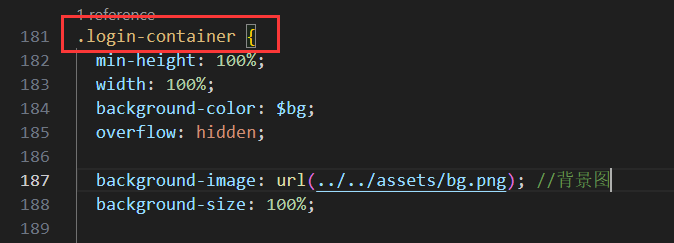
我们在浏览器中按
F12
打开开发者模式,选择1,然后鼠标移动到整个页面都被选择,此时左下角出现了一个类名
.login.container
,记住该名称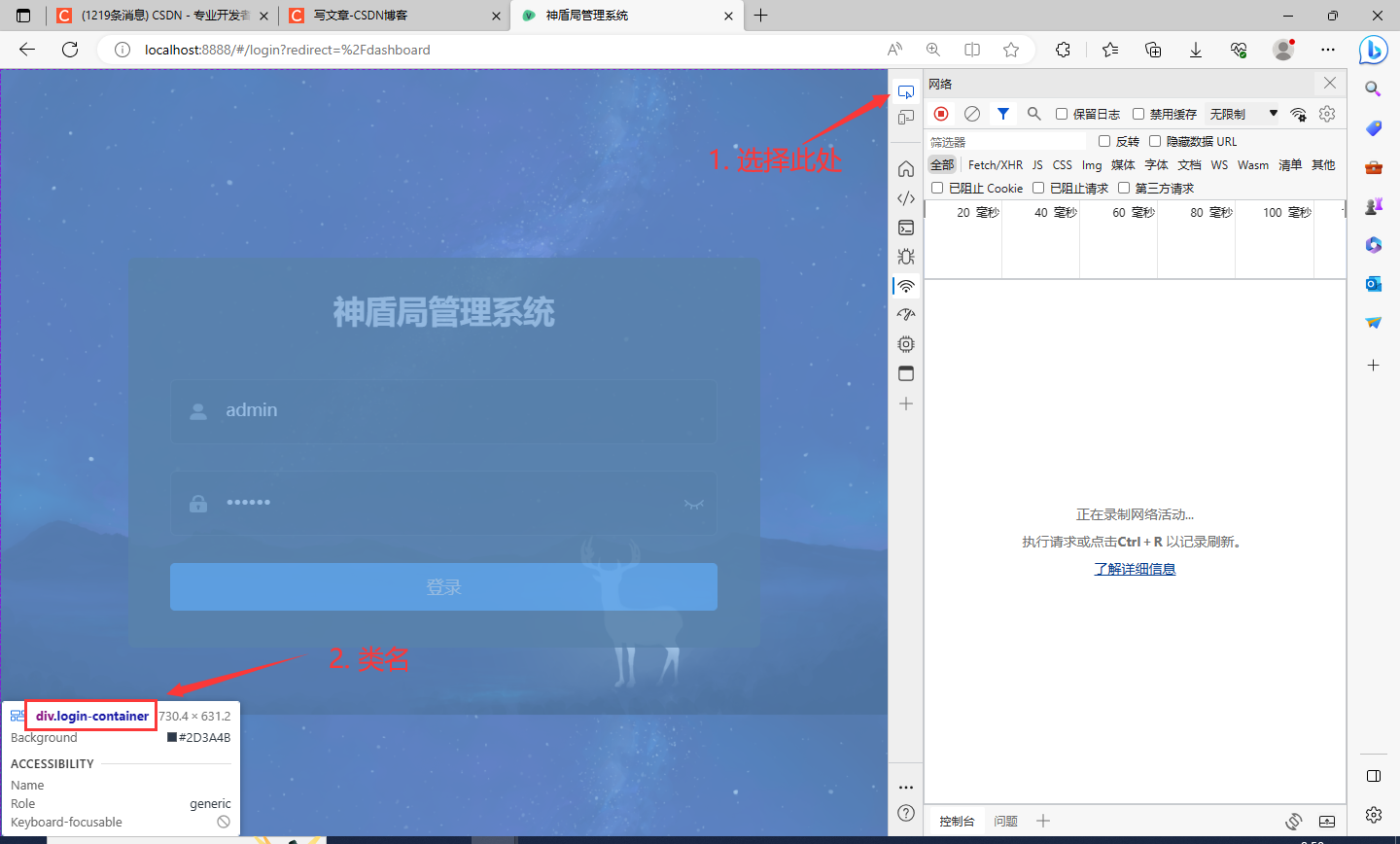
打开
VScode
搜索
.login-container
,注意页面显示的
.login.container
中第二个
.
替换为
-
变为
.login-container
,此处就是我们需要修改的样式的地方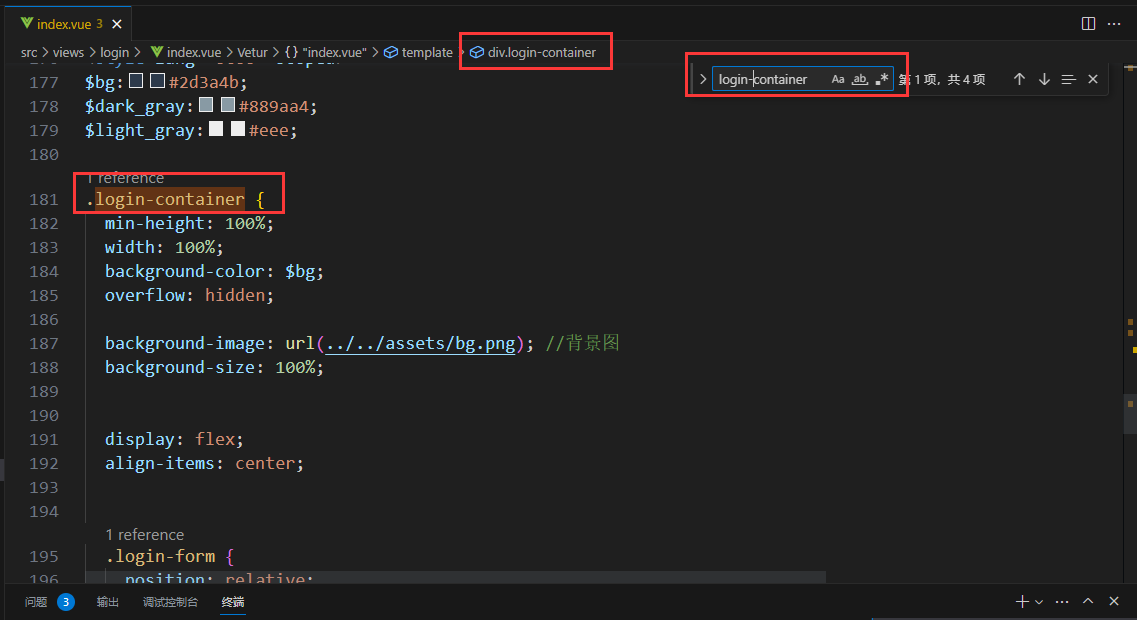
其他的修改:
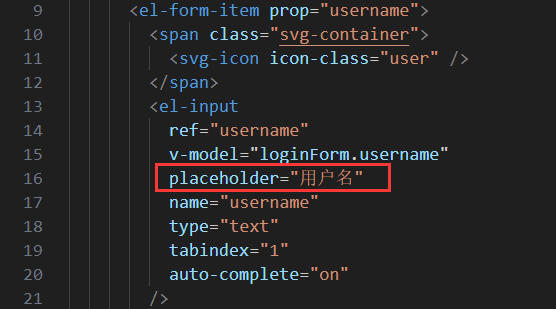
- 将英文变中文,其实就是找到对应的英文修改为中文,可在页面记住英文单词,然后进代码查找对应的英文在哪儿,然后打上中文即可
- 修改登录表单为半透明,同样
查找元素然后搜索login-form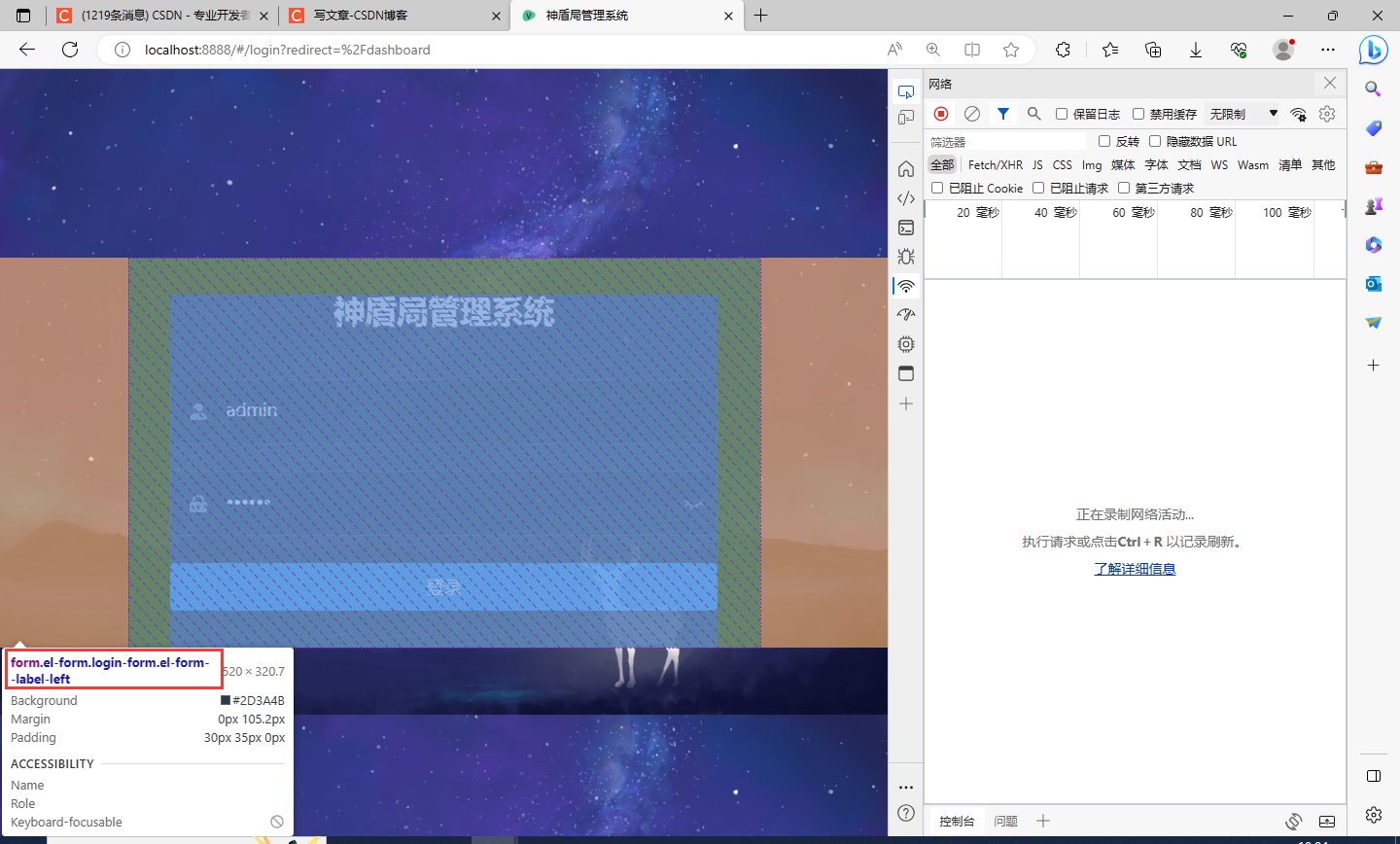
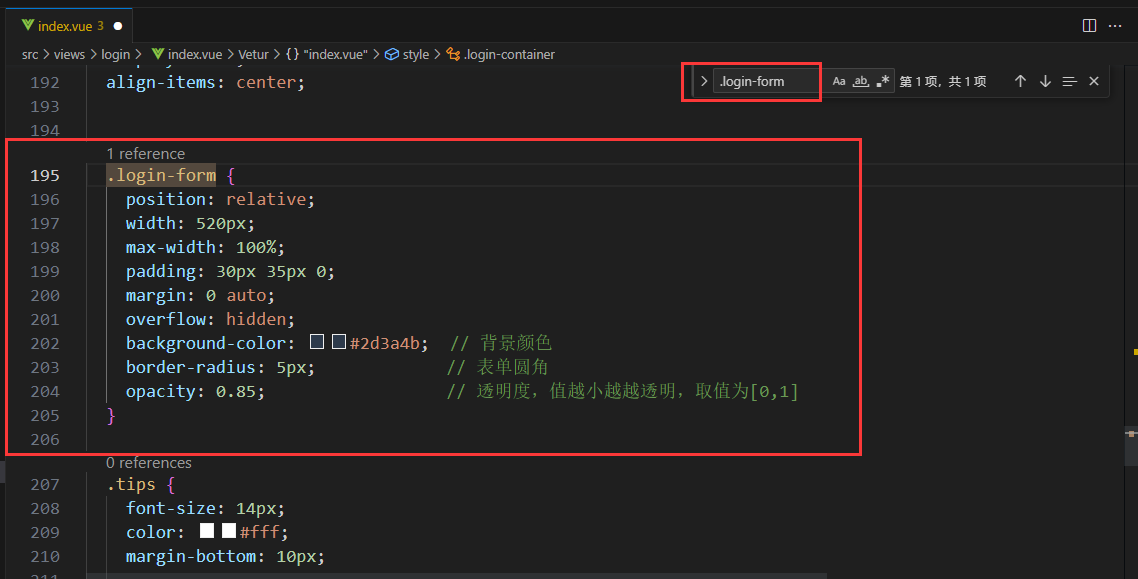
.login-form {position: relative;width: 520px; max-width:100%;padding: 30px 35px 0;margin:0 auto;overflow: hidden; background-color: #2d3a4b;// 背景颜色 border-radius: 5px;// 表单圆角opacity:0.85;// 透明度,值越小越越透明,取值为[0,1]} - 附上我的
src\views\login\inde.vue文件的全部代码<template><div class="login-container"><el-form ref="loginForm":model="loginForm":rules="loginRules"class="login-form" auto-complete="on" label-position="left"><div class="title-container"><h3 class="title">神盾局管理系统</h3></div><el-form-item prop="username"><span class="svg-container"><svg-icon icon-class="user"/></span><el-input ref="username" v-model="loginForm.username" placeholder="用户名" name="username" type="text" tabindex="1" auto-complete="on"/></el-form-item><el-form-item prop="password"><span class="svg-container"><svg-icon icon-class="password"/></span><el-input :key="passwordType" ref="password" v-model="loginForm.password":type="passwordType" placeholder="密码" name="password" tabindex="2" auto-complete="on" @keyup.enter.native="handleLogin"/><span class="show-pwd" @click="showPwd"><svg-icon :icon-class="passwordType === 'password' ? 'eye' : 'eye-open'"/></span></el-form-item><el-button :loading="loading" type="primary" style="width:100%;margin-bottom:30px;" @click.native.prevent="handleLogin">登录</el-button><!--<div class="tips"><span style="margin-right:20px;">username: admin</span><span> password: any</span></div>--></el-form></div></template><script>import{ validUsername }from'@/utils/validate'exportdefault{name:'Login',data(){constvalidateUsername=(rule, value, callback)=>{if(!validUsername(value)){callback(newError('请输入正确的用户名'))}else{callback()}}constvalidatePassword=(rule, value, callback)=>{if(value.length <6){callback(newError('密码不能少于6位'))}else{callback()}}return{loginForm:{username:'admin',password:'123456'},loginRules:{username:[{required:true,trigger:'blur',validator: validateUsername }],password:[{required:true,trigger:'blur',validator: validatePassword }]},loading:false,passwordType:'password',redirect:undefined}},watch:{$route:{handler:function(route){this.redirect = route.query && route.query.redirect },immediate:true}},methods:{showPwd(){if(this.passwordType ==='password'){this.passwordType =''}else{this.passwordType ='password'}this.$nextTick(()=>{this.$refs.password.focus()})},handleLogin(){this.$refs.loginForm.validate(valid=>{if(valid){this.loading =truethis.$store.dispatch('user/login',this.loginForm).then(()=>{this.$router.push({path:this.redirect ||'/'})this.loading =false}).catch(()=>{this.loading =false})}else{ console.log('error submit!!')returnfalse}})}}}</script><style lang="scss">/* 修复input 背景不协调 和光标变色 *//* Detail see https://github.com/PanJiaChen/vue-element-admin/pull/927 */$bg:#283443;$light_gray:#fff;$cursor: #fff;@supports(-webkit-mask: none)and(not(cater-color: $cursor)){.login-container .el-input input {color: $cursor;}}/* reset element-ui css */.login-container {.el-input {display: inline-block;height: 47px;width:85%; input {background: transparent;border: 0px;-webkit-appearance: none; border-radius: 0px;padding: 12px 5px 12px 15px;color: $light_gray;height: 47px; caret-color: $cursor;&:-webkit-autofill { box-shadow:00 0px 1000px $bg inset !important;-webkit-text-fill-color: $cursor !important;}}}.el-form-item {border: 1px solid rgba(255,255,255,0.1);background:rgba(0,0,0,0.1); border-radius: 5px;color: #454545;}}</style><style lang="scss" scoped>$bg:#2d3a4b;$dark_gray:#889aa4;$light_gray:#eee;.login-container { min-height:100%;width:100%; background-color: $bg;overflow: hidden; background-image:url(../../assets/bg.png);//背景图 background-size:100%;display: flex; align-items: center;.login-form {position: relative;width: 520px; max-width:100%;padding: 30px 35px 0;margin:0 auto;overflow: hidden; background-color: #2d3a4b;// 背景颜色 border-radius: 5px;// 表单圆角opacity:0.85;// 透明度,值越小越越透明,取值为[0,1]}.tips { font-size: 14px;color: #fff; margin-bottom: 10px; span {&:first-of-type { margin-right: 16px;}}}.svg-container {padding: 6px 5px 6px 15px;color: $dark_gray; vertical-align: middle;width: 30px;display: inline-block;}.title-container {position: relative;.title { font-size: 26px;color: $light_gray;margin: 0px auto 40px auto; text-align: center; font-weight: bold;}}.show-pwd {position: absolute;right: 10px;top: 7px; font-size: 16px;color: $dark_gray;cursor: pointer; user-select: none;}}</style>``````复制代码后注意背景图的链接地址下要有文件存在
修改
页面标签
找到
src\settings.js
文件,然后修改第3行
title
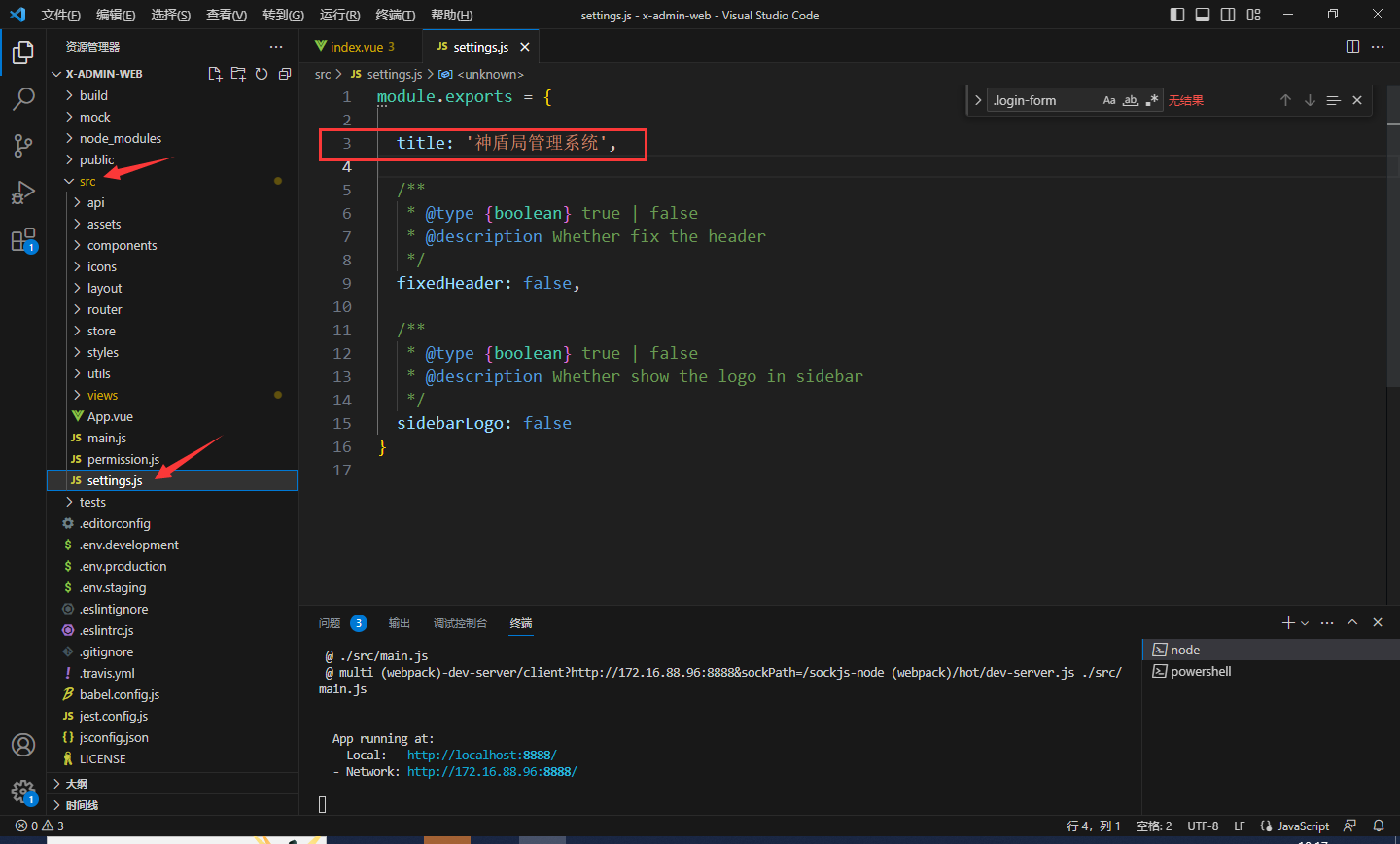
修改完毕后浏览器标签会改变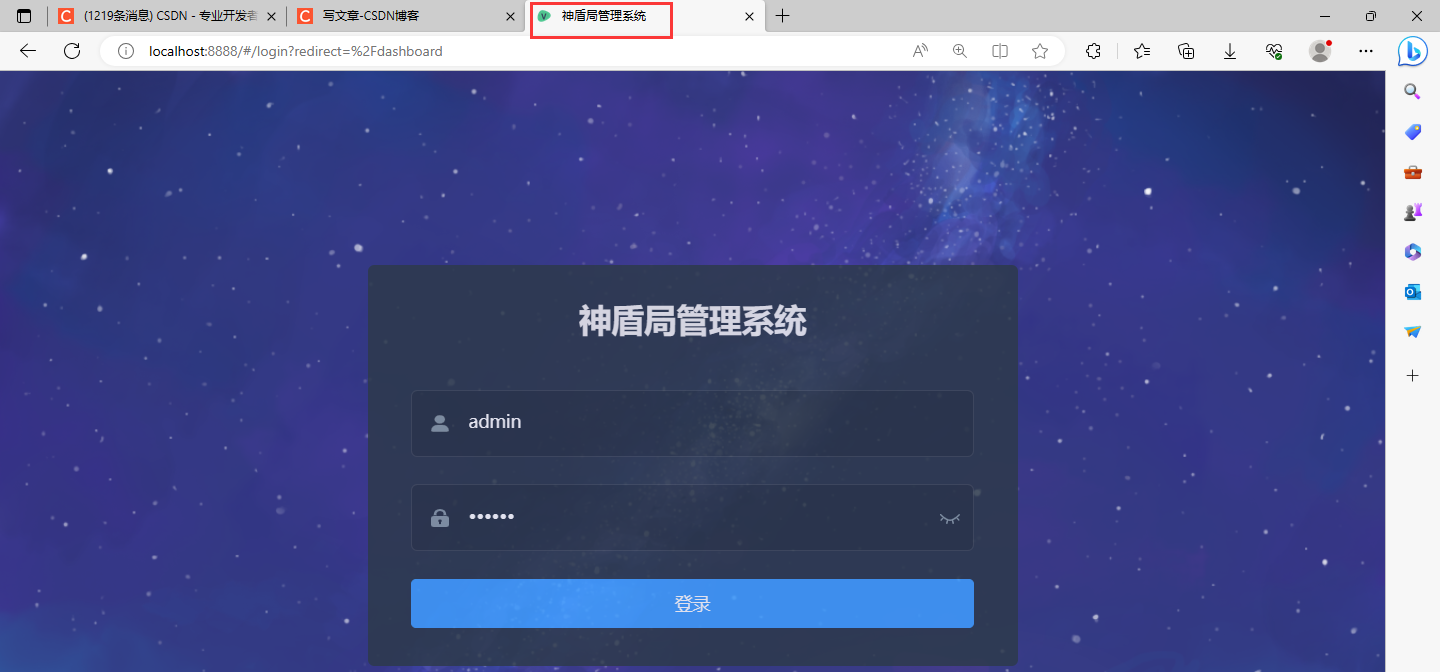
修改导航栏
点击此处会有导航窗口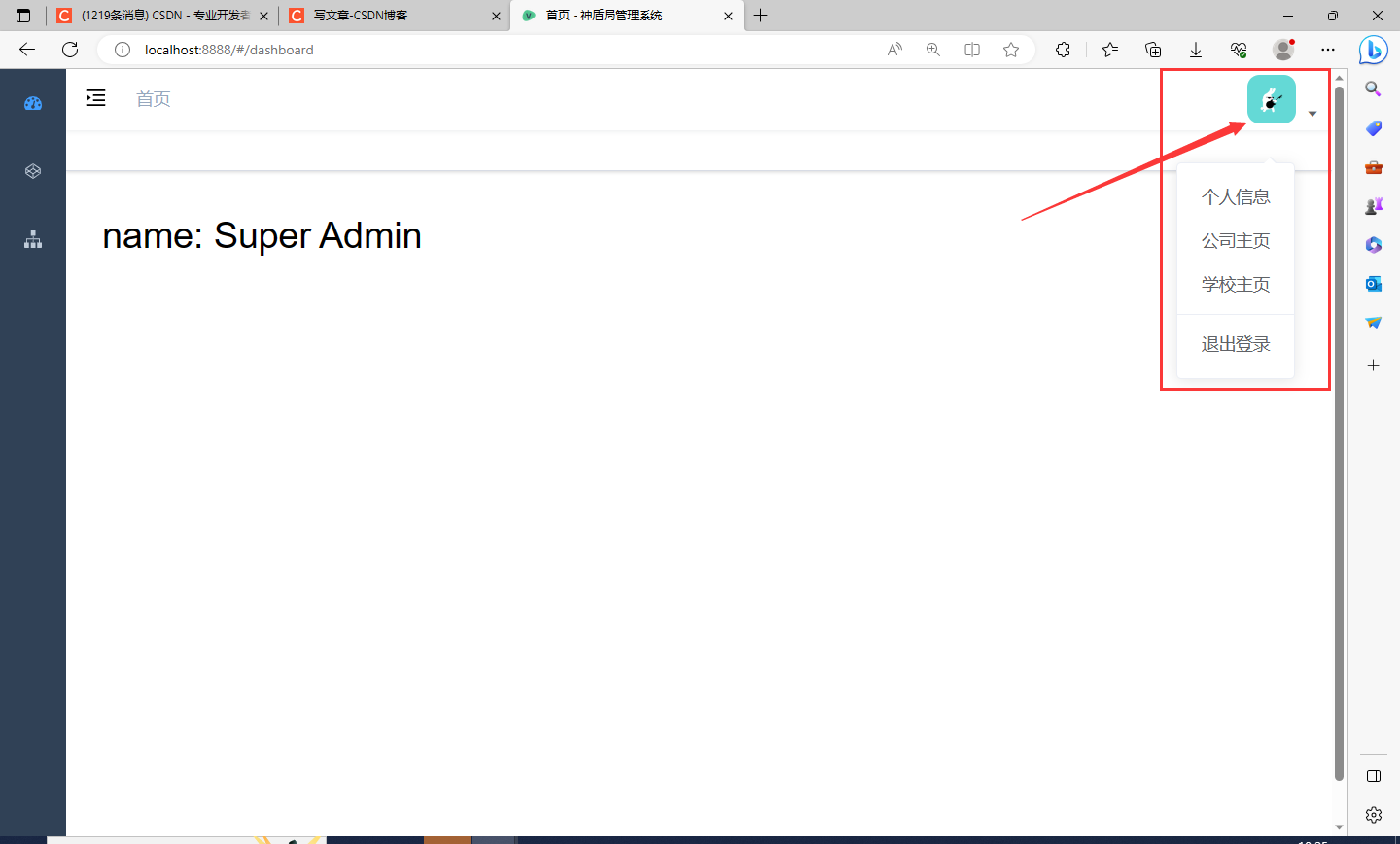
可自定义修改,找到
scr\layout\components\Navbar.vue
文件,修改红框处的代码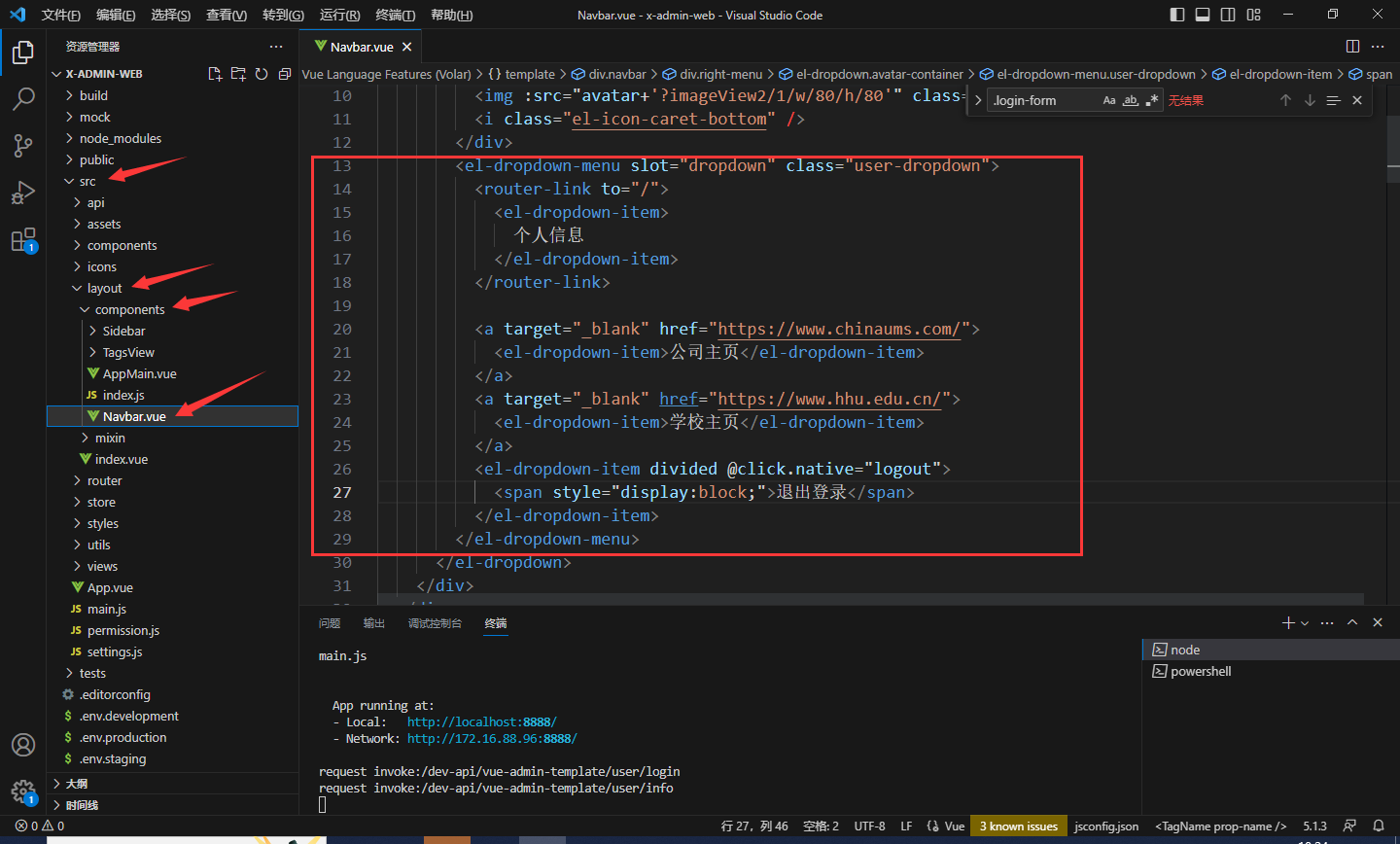
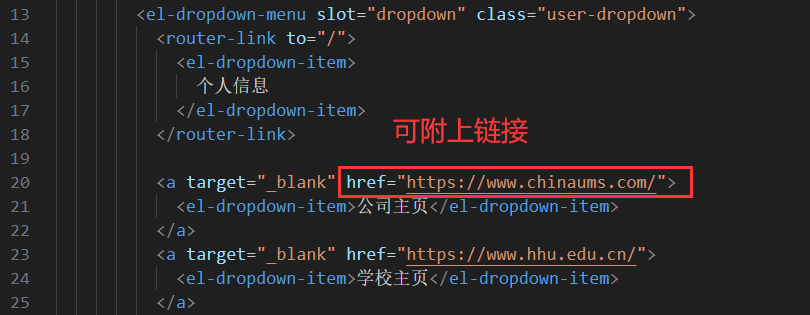
<el-dropdown-menu slot="dropdown"class="user-dropdown"><router-link to="/"><el-dropdown-item>
       个人信息
     </el-dropdown-item></router-link><a target="_blank" href="https://www.chinaums.com/"><el-dropdown-item>公司主页</el-dropdown-item></a><a target="_blank" href="https://www.hhu.edu.cn/"><el-dropdown-item>学校主页</el-dropdown-item></a><el-dropdown-item divided @click.native="logout"><span style="display:block;">退出登录</span></el-dropdown-item></el-dropdown-menu>
自定义菜单与子菜单
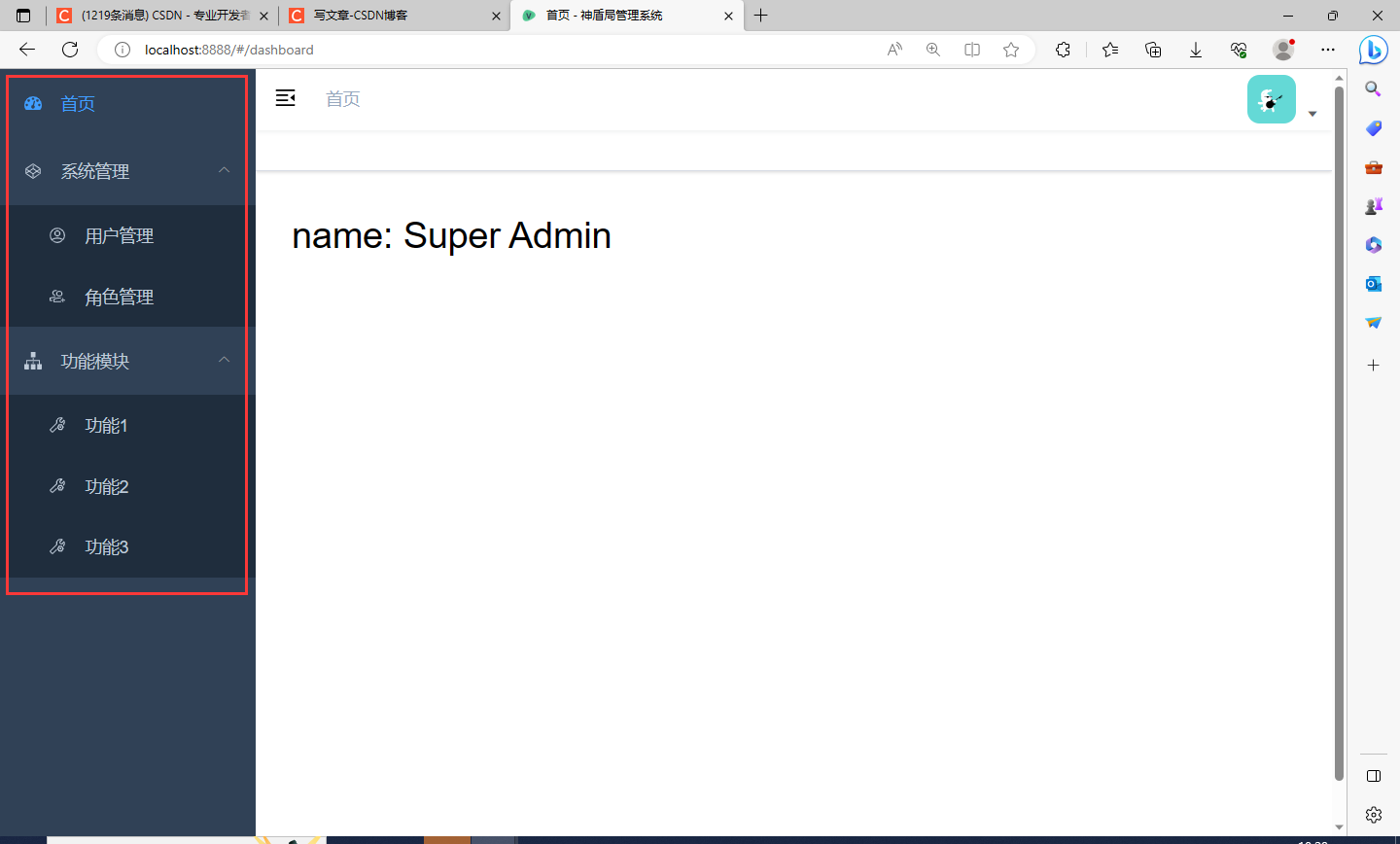
首先,在
src\views\
下新建文件夹
sys
和
test
,然后再分别在这两个文件夹中新建
role.vue
、
user.vue
、
test1.vue
、
test2.vue
、
test3.vue
文件,如下图所示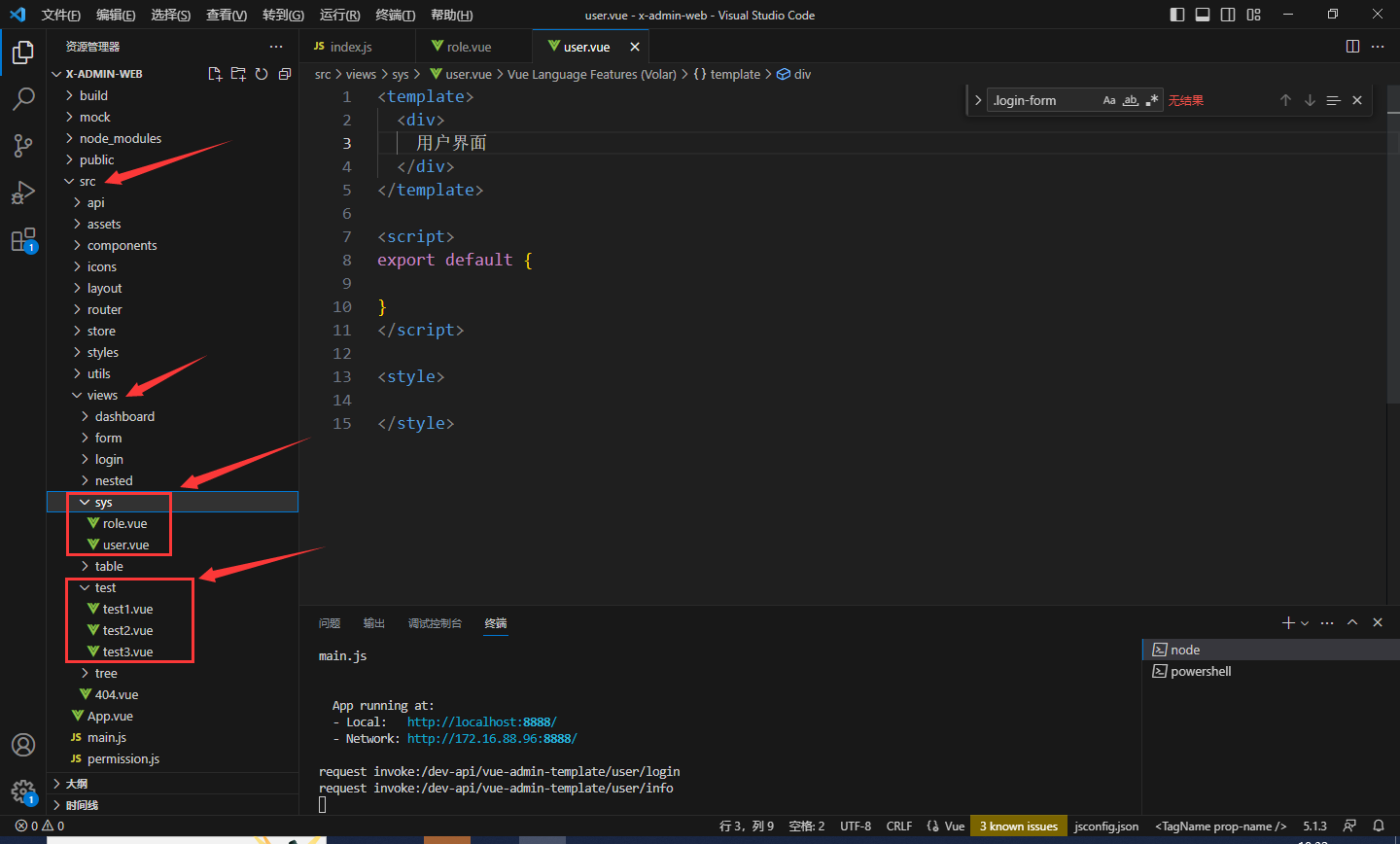
进入
role.vue
写代码
在
VScode
中输入
vue
会自动代码提示(需在
VScode
中安装
vue
插件),回车即可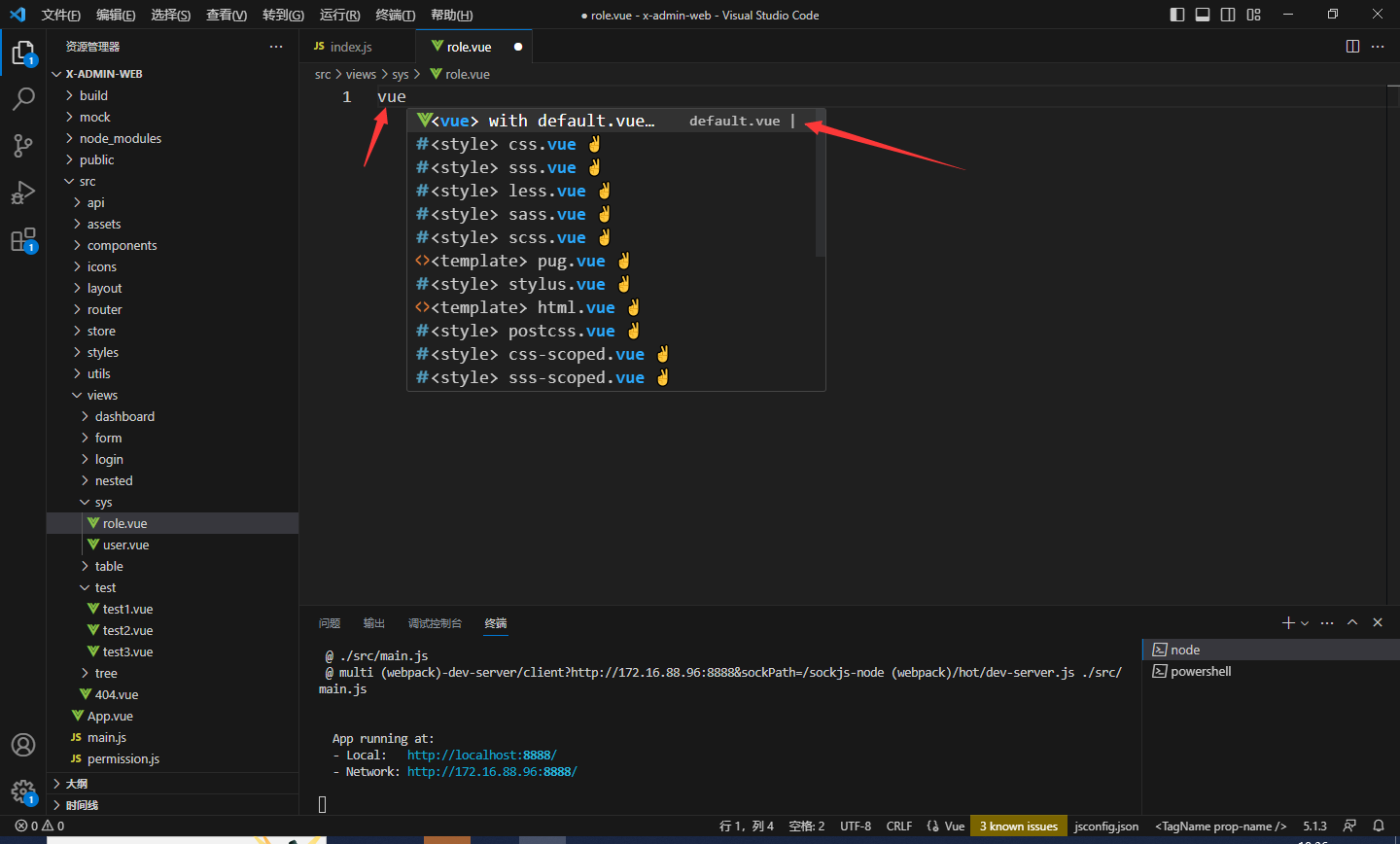
会自动生成模板
此时写上一些代码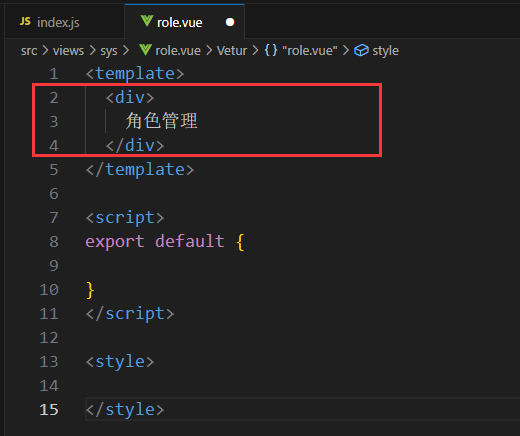
其他新建的
vue
文件如法炮制
然后我们在
src\router\index.js
中路由链接这些新建的
vue
文件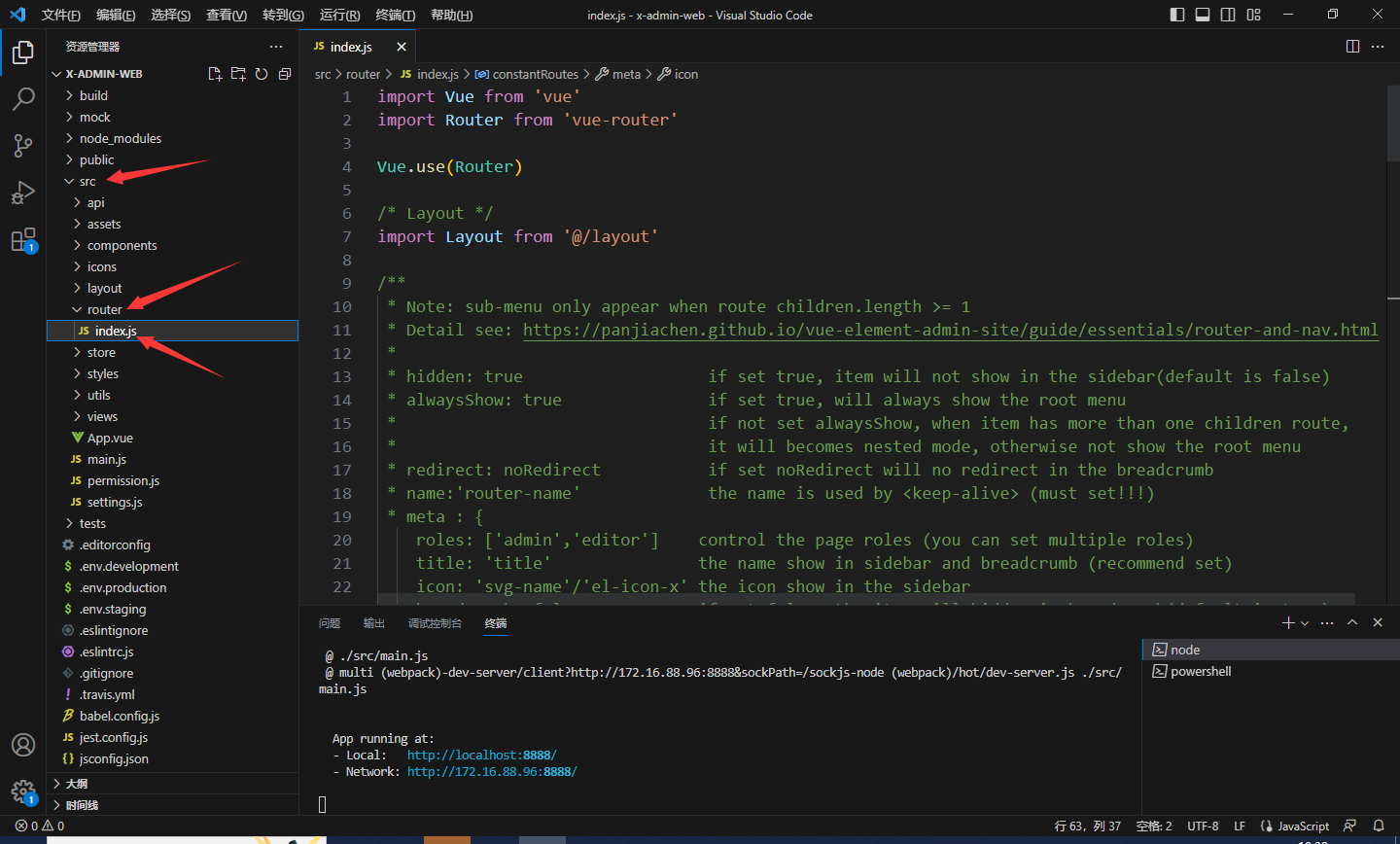

新增代码及注释
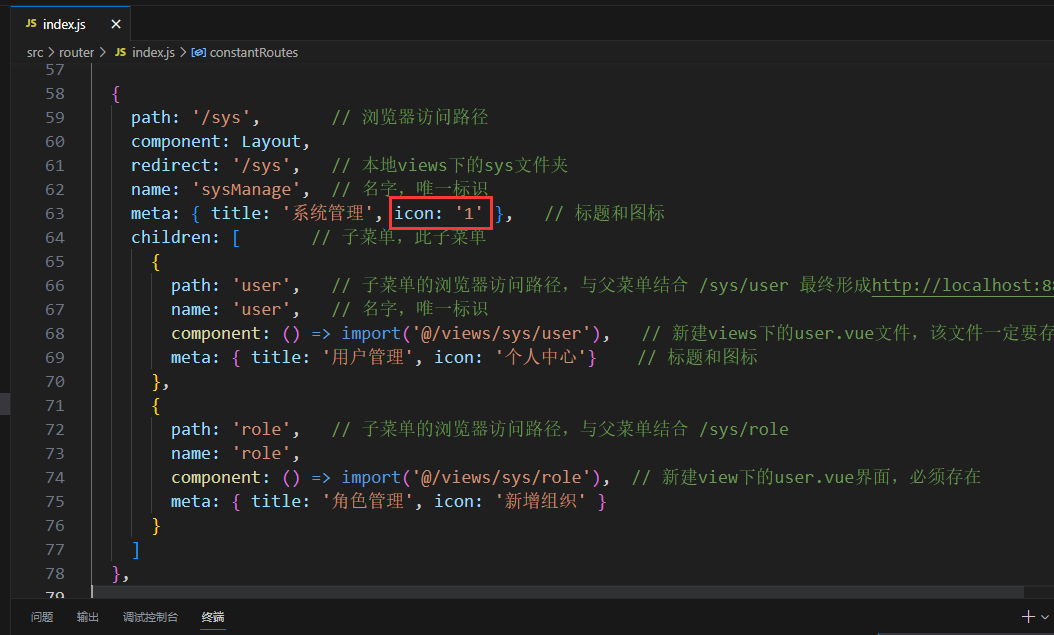
{path:'/sys',// 浏览器访问路径component: Layout,redirect:'/sys',// 本地views下的sys文件夹name:'sysManage',// 名字,唯一标识meta:{title:'系统管理',icon:'1'},// 标题和图标children:[// 子菜单 {path:'user',// 子菜单的浏览器访问路径,与父菜单结合 /sys/user 最终形成http://localhost:8888/#/sys/username:'user',// 名字,唯一标识component:()=>import('@/views/sys/user'),// 新建views下的user.vue文件,该文件一定要存在meta:{title:'用户管理',icon:'个人中心'}// 标题和图标},{path:'role',// 子菜单的浏览器访问路径,与父菜单结合 /sys/rolename:'role',component:()=>import('@/views/sys/role'),// 新建view下的user.vue界面,必须存在meta:{title:'角色管理',icon:'新增组织'}}]},
注意该代码中的
icon:'1'
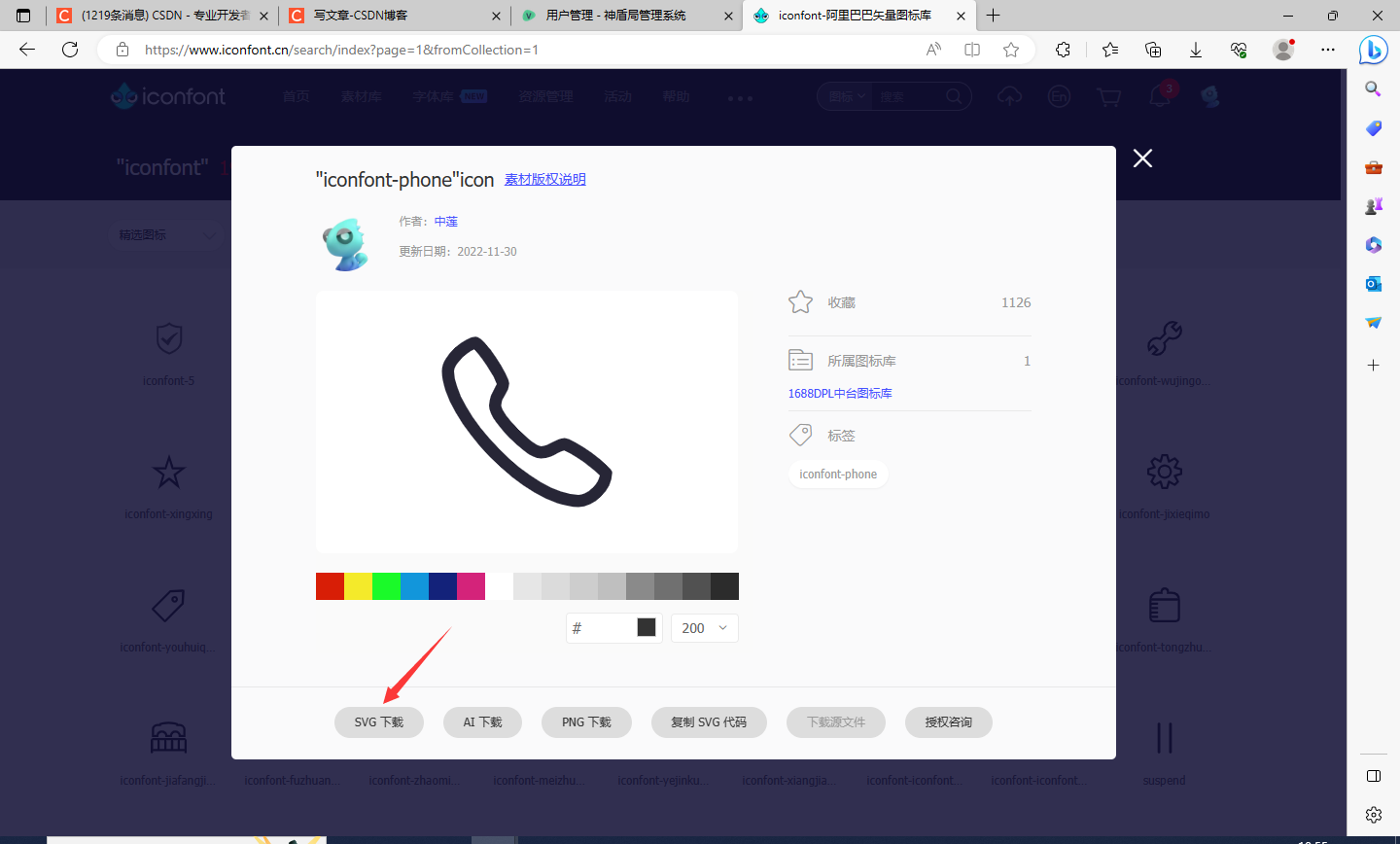
,这是自定义的图标,可在阿里巴巴矢量图标库中下载自己喜欢的图标
找到喜欢的图标后点击
SVG下载
下好的图标重命名后保存在
src\icons\svg
文件夹中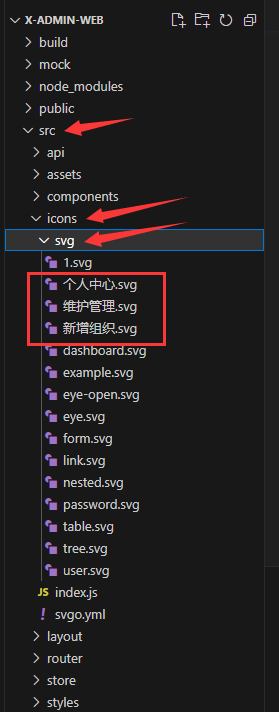
然后就可以在代码中用上该图标了,不用写
路径
和
后缀名

图标效果如下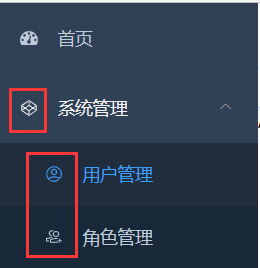
我的
src\router\index.js
全部代码
import Vue from'vue'import Router from'vue-router'

Vue.use(Router)/* Layout */import Layout from'@/layout'/**
 * Note: sub-menu only appear when route children.length >= 1
 * Detail see: https://panjiachen.github.io/vue-element-admin-site/guide/essentials/router-and-nav.html
 *
 * hidden: true                   if set true, item will not show in the sidebar(default is false)
 * alwaysShow: true               if set true, will always show the root menu
 *                                if not set alwaysShow, when item has more than one children route,
 *                                it will becomes nested mode, otherwise not show the root menu
 * redirect: noRedirect           if set noRedirect will no redirect in the breadcrumb
 * name:'router-name'             the name is used by <keep-alive> (must set!!!)
 * meta : {
    roles: ['admin','editor']    control the page roles (you can set multiple roles)
    title: 'title'               the name show in sidebar and breadcrumb (recommend set)
    icon: 'svg-name'/'el-icon-x' the icon show in the sidebar
    breadcrumb: false            if set false, the item will hidden in breadcrumb(default is true)
    activeMenu: '/example/list'  if set path, the sidebar will highlight the path you set
  }
 *//**
 * constantRoutes
 * a base page that does not have permission requirements
 * all roles can be accessed
 */exportconst constantRoutes =[{path:'/login',component:()=>import('@/views/login/index'),hidden:true},{path:'/404',component:()=>import('@/views/404'),hidden:true},{path:'/',component: Layout,redirect:'/dashboard',children:[{path:'dashboard',name:'Dashboard',component:()=>import('@/views/dashboard/index'),meta:{title:'首页',icon:'dashboard',affix:true}}]},{path:'/sys',// 浏览器访问路径component: Layout,redirect:'/sys',// 本地views下的sys文件夹name:'sysManage',// 名字,唯一标识meta:{title:'系统管理',icon:'1'},// 标题和图标children:[// 子菜单,此子菜单   {path:'user',// 子菜单的浏览器访问路径,与父菜单结合 /sys/user 最终形成http://localhost:8888/#/sys/username:'user',// 名字,唯一标识component:()=>import('@/views/sys/user'),// 新建views下的user.vue文件,该文件一定要存在meta:{title:'用户管理',icon:'个人中心'}// 标题和图标},{path:'role',// 子菜单的浏览器访问路径,与父菜单结合 /sys/rolename:'role',component:()=>import('@/views/sys/role'),// 新建view下的user.vue界面,必须存在meta:{title:'角色管理',icon:'新增组织'}}]},{path:'/test',component: Layout,redirect:'/test',name:'test',meta:{title:'功能模块',icon:'tree'},children:[//子菜单{path:'test1',name:'test1',component:()=>import('@/views/test/test1'),// 新建view下的user.vue界面meta:{title:'功能1',icon:'维护管理'}},{path:'test2',name:'test2',component:()=>import('@/views/test/test2'),// 新建view下的user.vue界面,必须存在meta:{title:'功能2',icon:'维护管理'}},{path:'test3',name:'test3',component:()=>import('@/views/test/test3'),// 新建view下的user.vue界面,必须存在meta:{title:'功能3',icon:'维护管理'}}]},// 404 page must be placed at the end !!!{path:'*',redirect:'/404',hidden:true}]constcreateRouter=()=>newRouter({// mode: 'history', // require service supportscrollBehavior:()=>({y:0}),routes: constantRoutes
})const router =createRouter()// Detail see: https://github.com/vuejs/vue-router/issues/1234#issuecomment-357941465exportfunctionresetRouter(){const newRouter =createRouter()
  router.matcher = newRouter.matcher // reset router}exportdefault router
注意复制代码时,确认好自己的icon图标文件
增加导航标签功能
如下图所示需要新增一个功能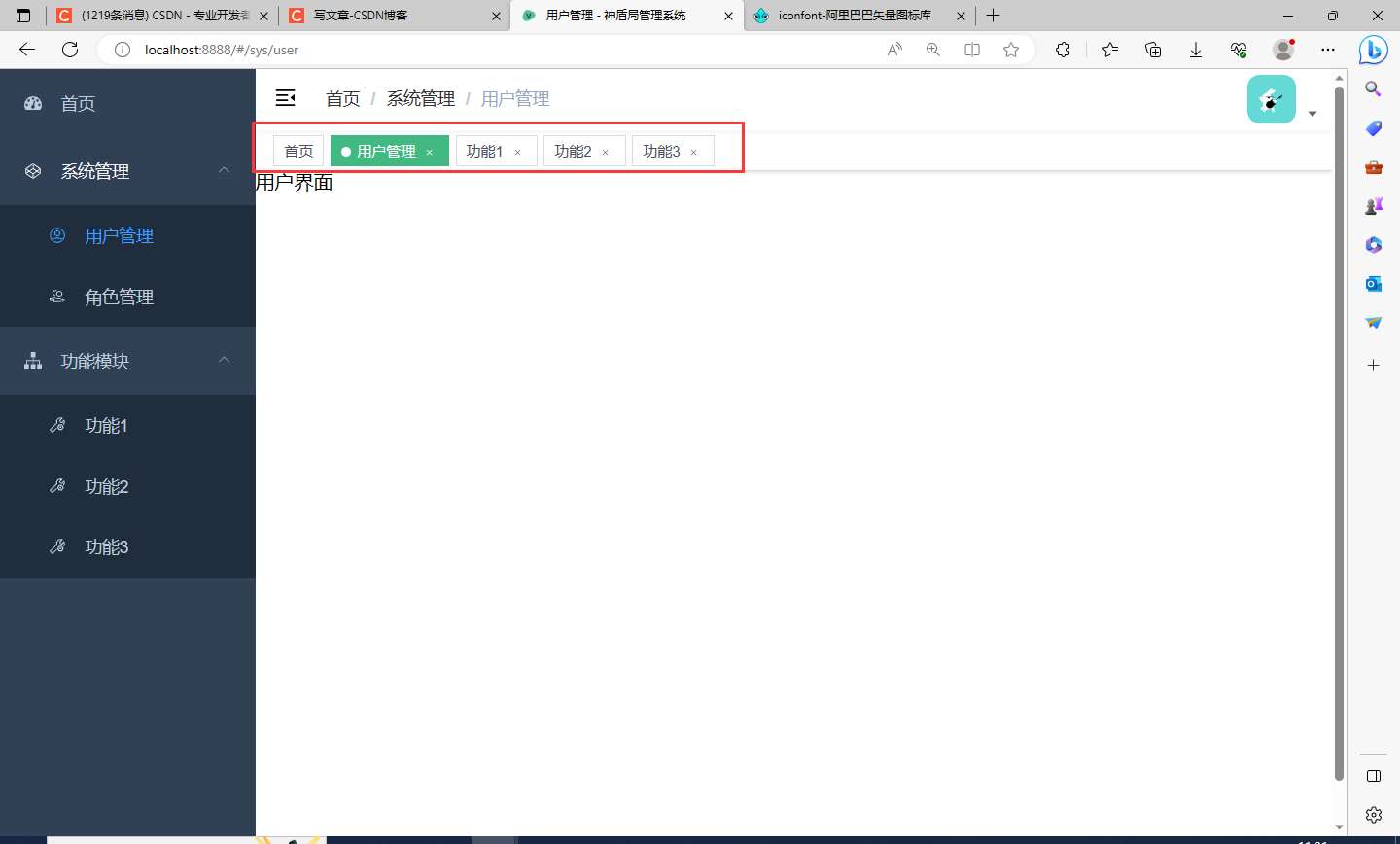
此功能的代码在之前介绍的第一个项目中,现在需要将代码
copy
过来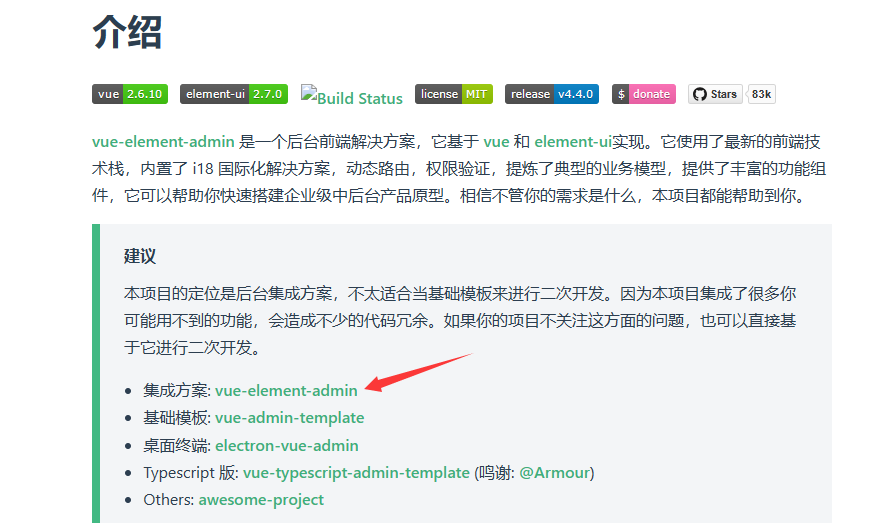
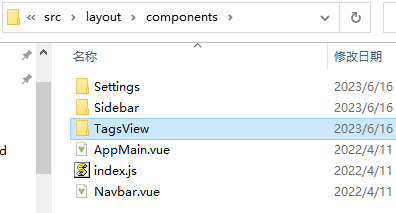
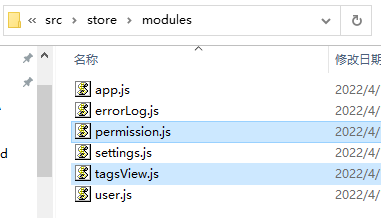
下载好最新的一个压缩包后,解压缩,找到以下三个文件,注意
这些文件复制到正在开发的项目中对应的路径中去
,两个项目的路径设置是一样的
src/layout/components/TagsView
src/store/modules/tagsView.js
src/store/modules/permission.js
然后进入
VScode
中添加代码:
- 进入
src/layout/components/AppMain.vue文件修改红框代码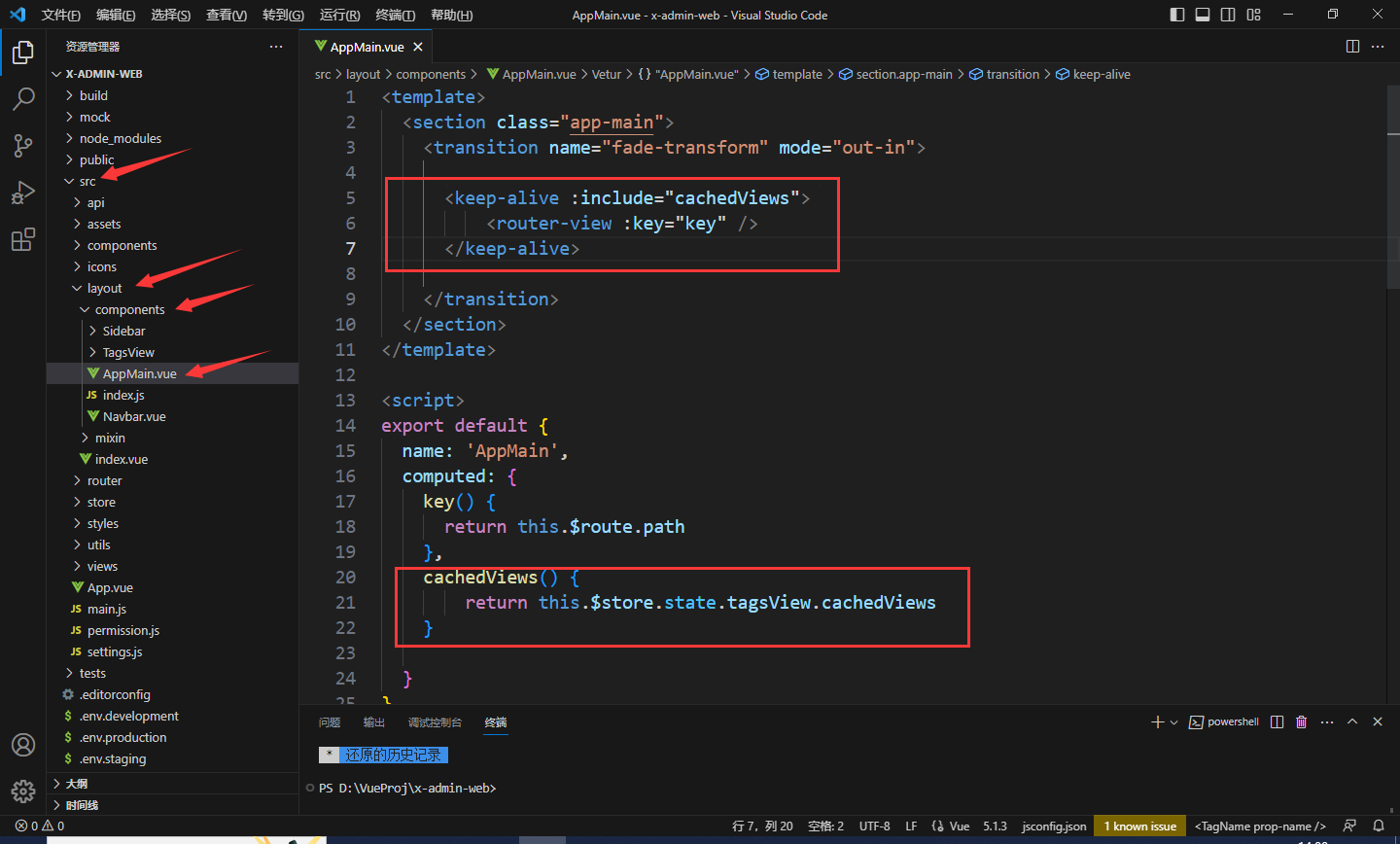
<keep-alive :include="cachedViews"><router-view :key="key"/></keep-alive>exportdefault{name:'AppMain',computed:{key(){returnthis.$route.path },cachedViews(){returnthis.$store.state.tagsView.cachedViews }}} - 修改文件
src/store/getters.js
visitedViews:state=> state.tagsView.visitedViews,cachedViews:state=> state.tagsView.cachedViews,permission_routes:state=> state.permission.routes - 修改文件
src/store/index.js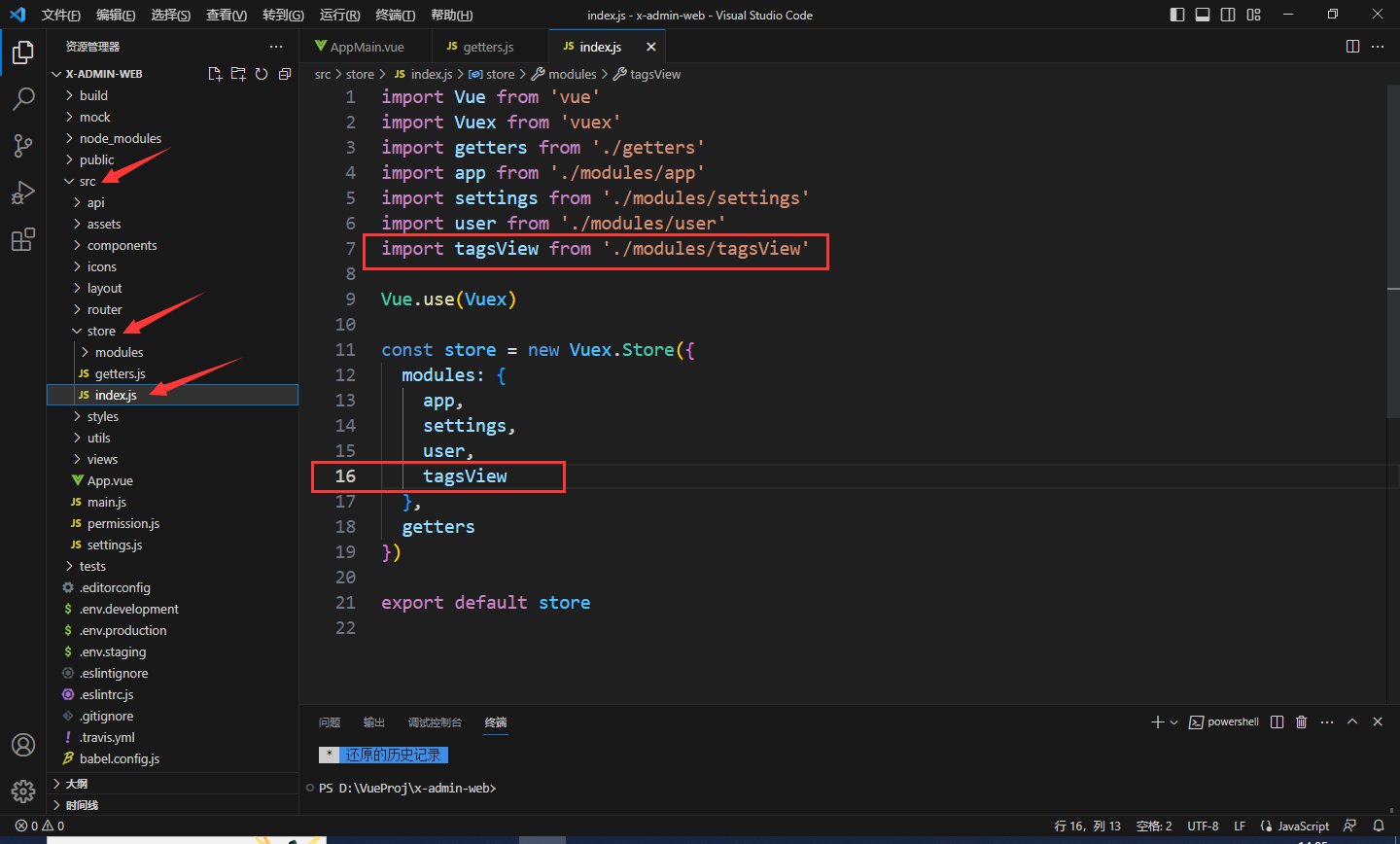
import Vue from'vue'import Vuex from'vuex'import getters from'./getters'import app from'./modules/app'import settings from'./modules/settings'import user from'./modules/user'import tagsView from'./modules/tagsView'Vue.use(Vuex)const store =newVuex.Store({modules:{ app, settings, user, tagsView }, getters})exportdefault store - 修改文件
src\layout\index.vue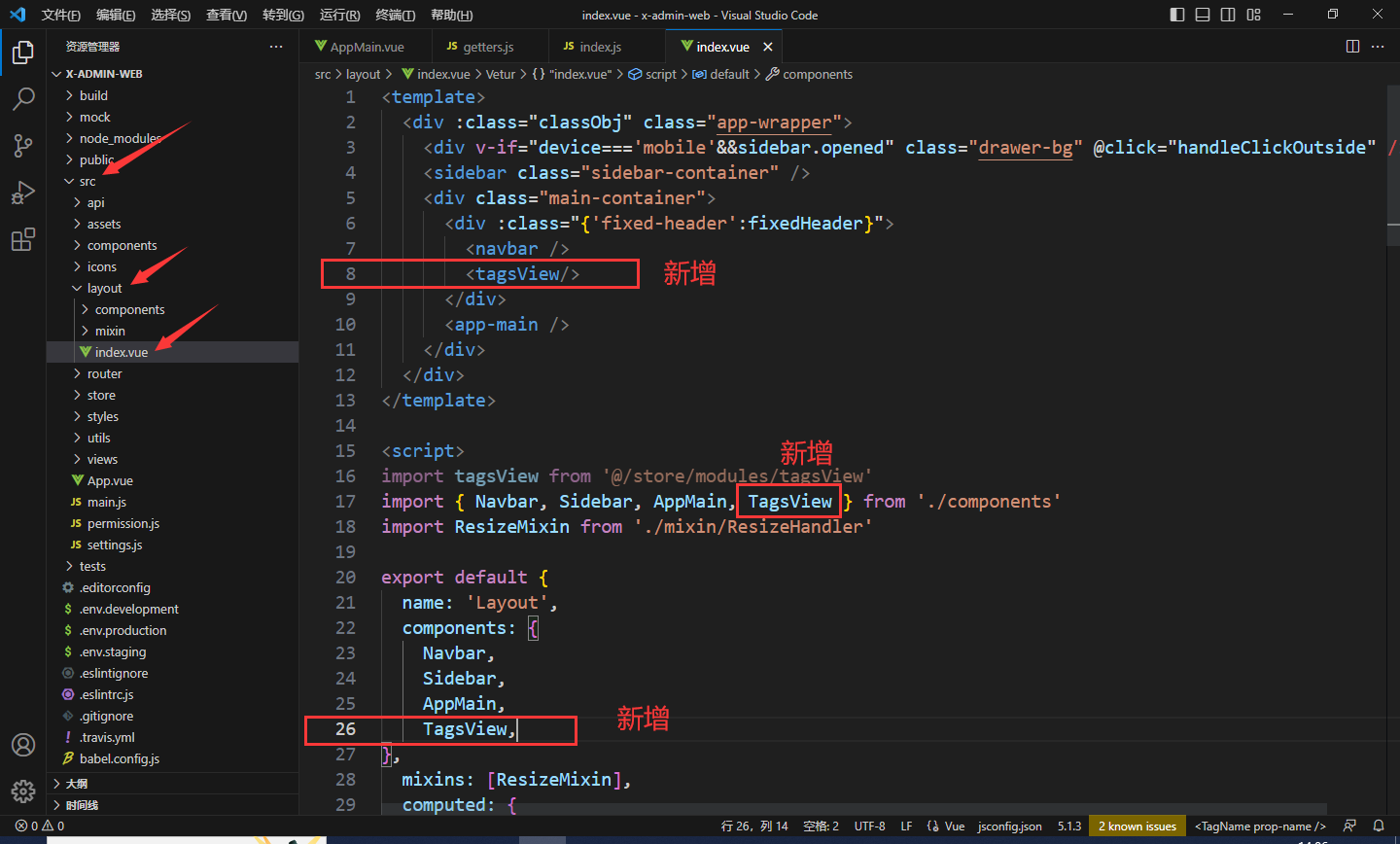
- 修改文件
src\layout\components\index.js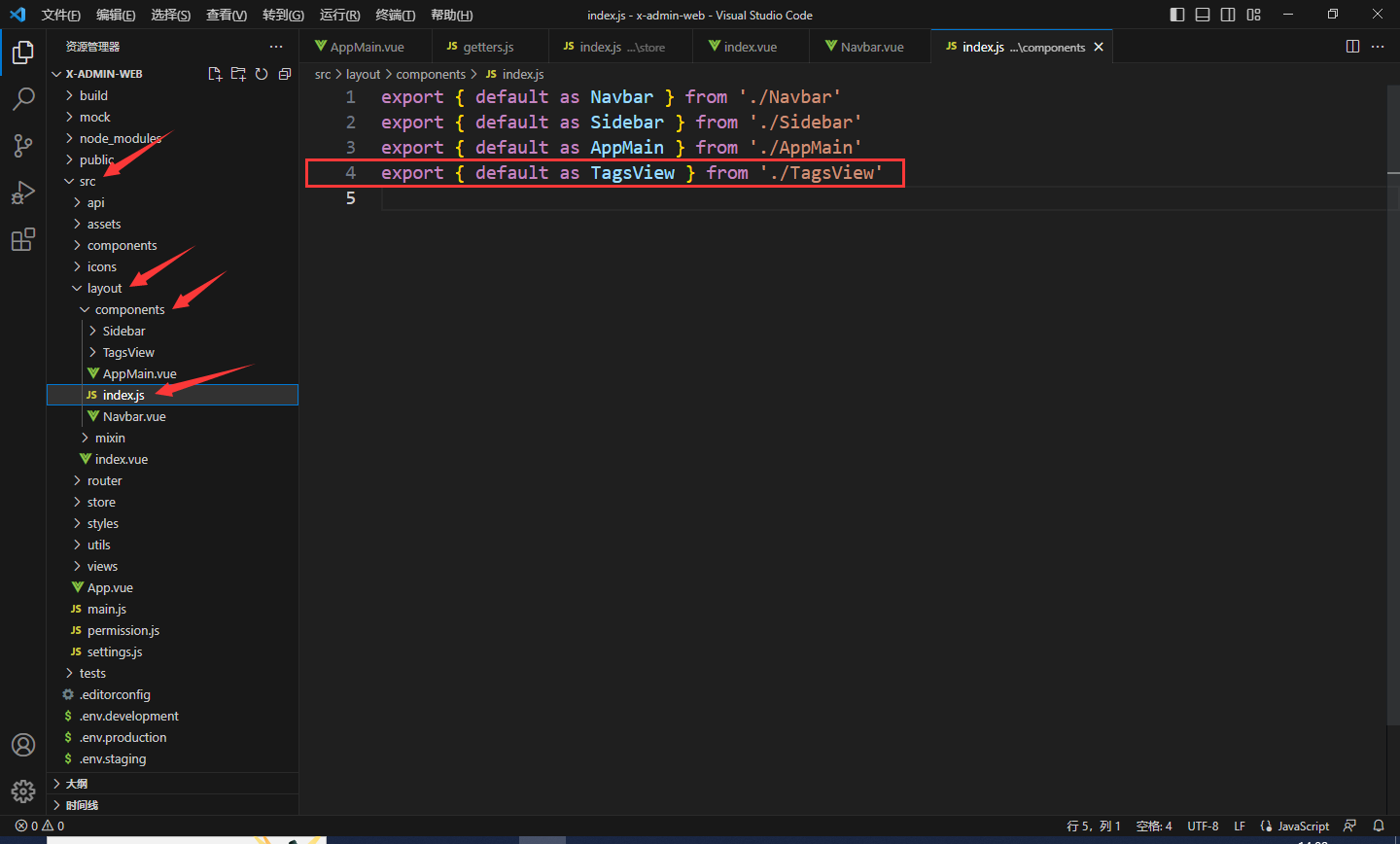
export{defaultas TagsView }from'./TagsView'
大功告成!重新启动项目
npm run dev
如果我们想要设置某个标签不可关闭,如下图中
首页
标签,此时需要在
src\router\index.js
文件中找到
首页
然后添加属性
affix:true
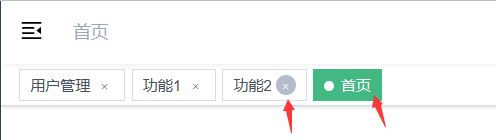
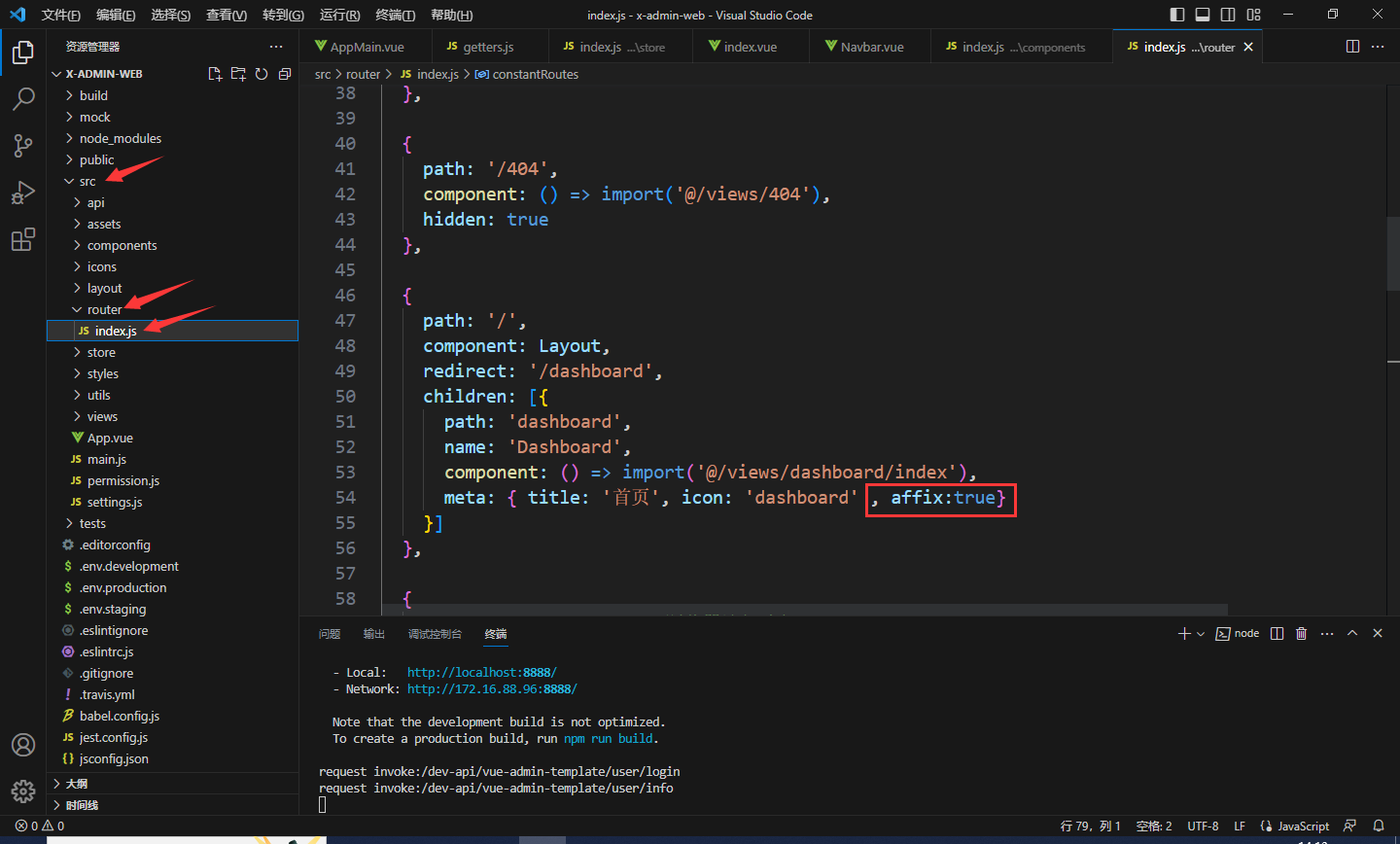
另外,标签导航是可以右击的,此处我将英文修改为了中文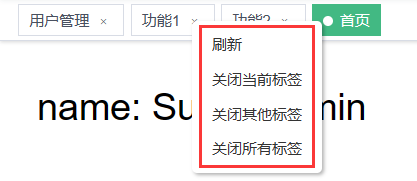
大家可以在
VScode
中全局搜索浏览器弹出来的英文,然后查找,再将其修改为对应中文即可,此处修改路径为
src\layout\components\TagsView\index.vue
中第
20
行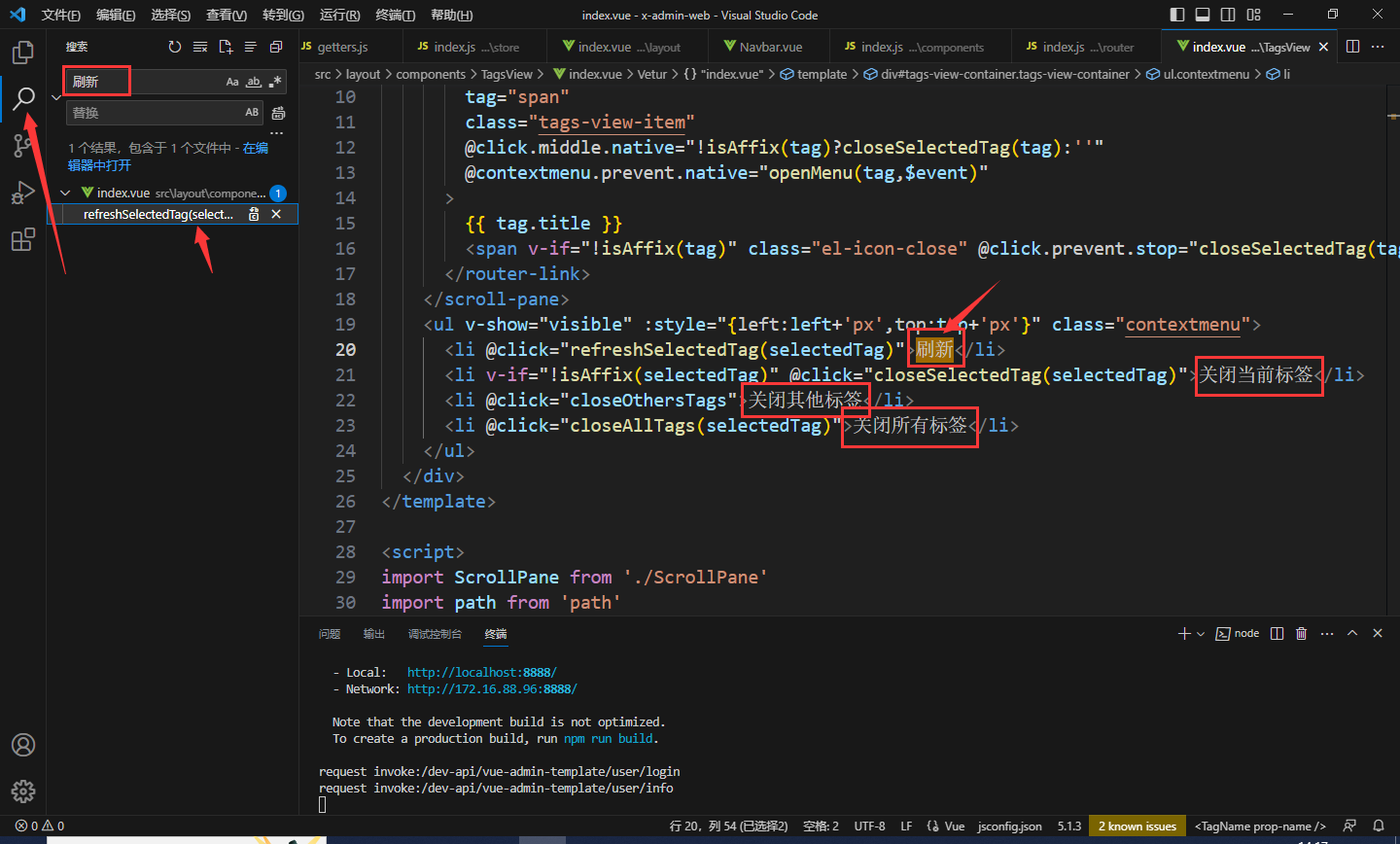
此时前端页面修改就大差不差了
前端数据格式
前后端对接需要知道前端登录的
json
数据传递格式
打开浏览器界面,按
F12
选择
网络
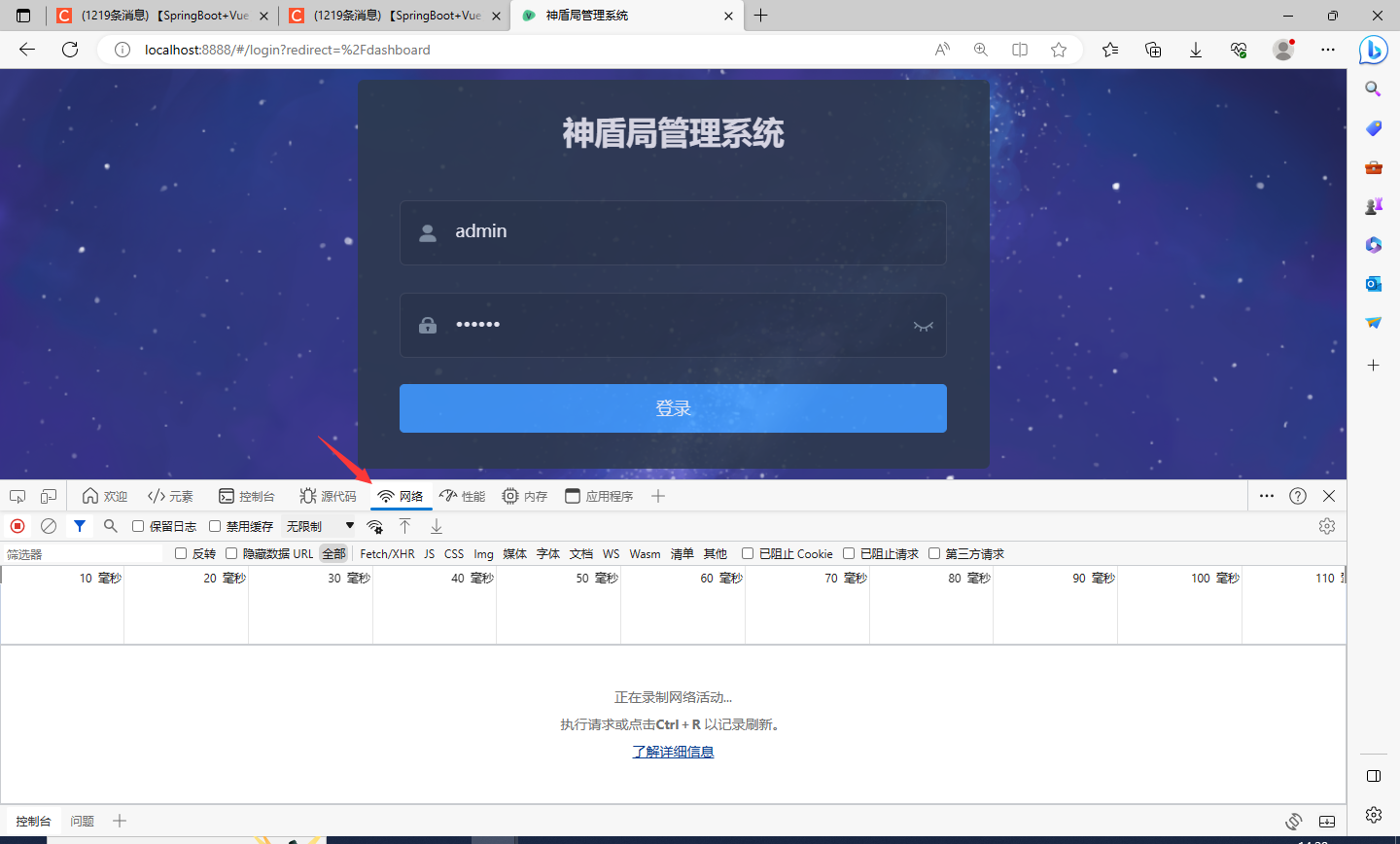
然后点击
登录
,此时浏览器会记录状态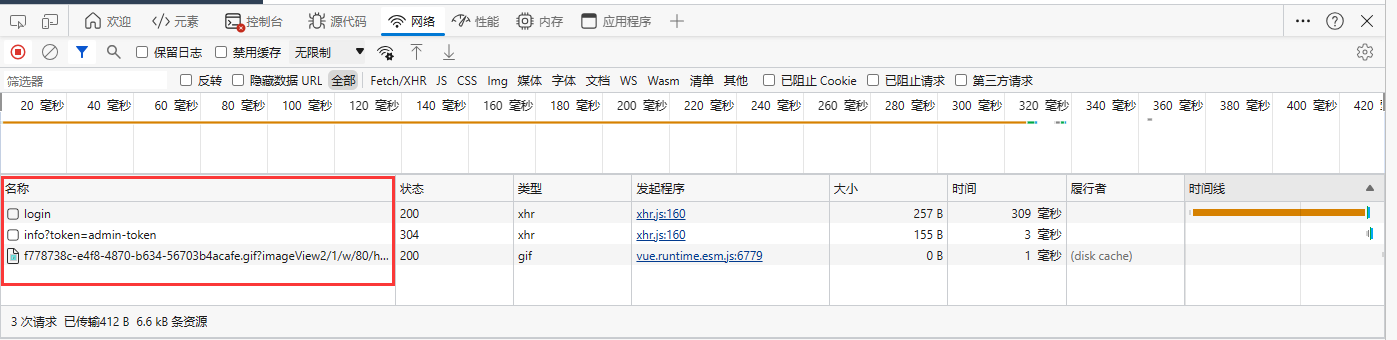
单击
login
会出现数据响应格式,如红框所示,这个格式后端写代码会用到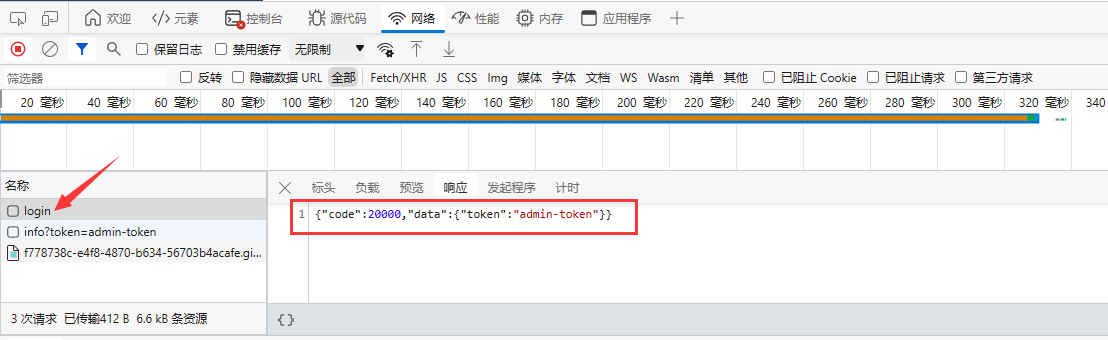
{"code":20000,"data":{"token":"admin-token"}}
版权归原作者 Anthony_CH 所有, 如有侵权,请联系我们删除。