
文章目录
前言
- 大家好,上一篇一文读懂 系列的文章中我们介绍了前端的代码格式化校验工具ESLient。代码格式是进行自动校验了,但你还要一个个的微调,很麻烦不是吗?
- 本文介绍和ESLient配合使用的Prettier实现编译器自动将代码格式化。 同时也介绍VsCode的 setting设置,分享我开发时常用的配置。
- 一文读懂 ESLint配置 一文读懂 ESLint配置
Prettier
- Prettier可以通过JSON 、YAML 、JavaScript 等方式来进行配置。其作用就是自动统一代码风格,例如缩进、单/双引号、行尾逗号等,在本文将使用json进行配置。
第一步:下载依赖(团队合作)或下载插件(独立开发)
- 如果你不是一个人,而是一个团队开发一个项目,这个时候就要给你的项目添加Prettier的相关依赖
- 如果你只是个人开发,那么可以不用添加这个依赖,直接到VScode中下载相关插件就可以了
- 两者都会影响到项目的代码自动格式化,区别只是下载依赖那么项目自己自带自动格式化,而不下载依赖本质上其实是 自己对编译器的私设
下载依赖
pnpm add -D prettier
下载插件
Prettier
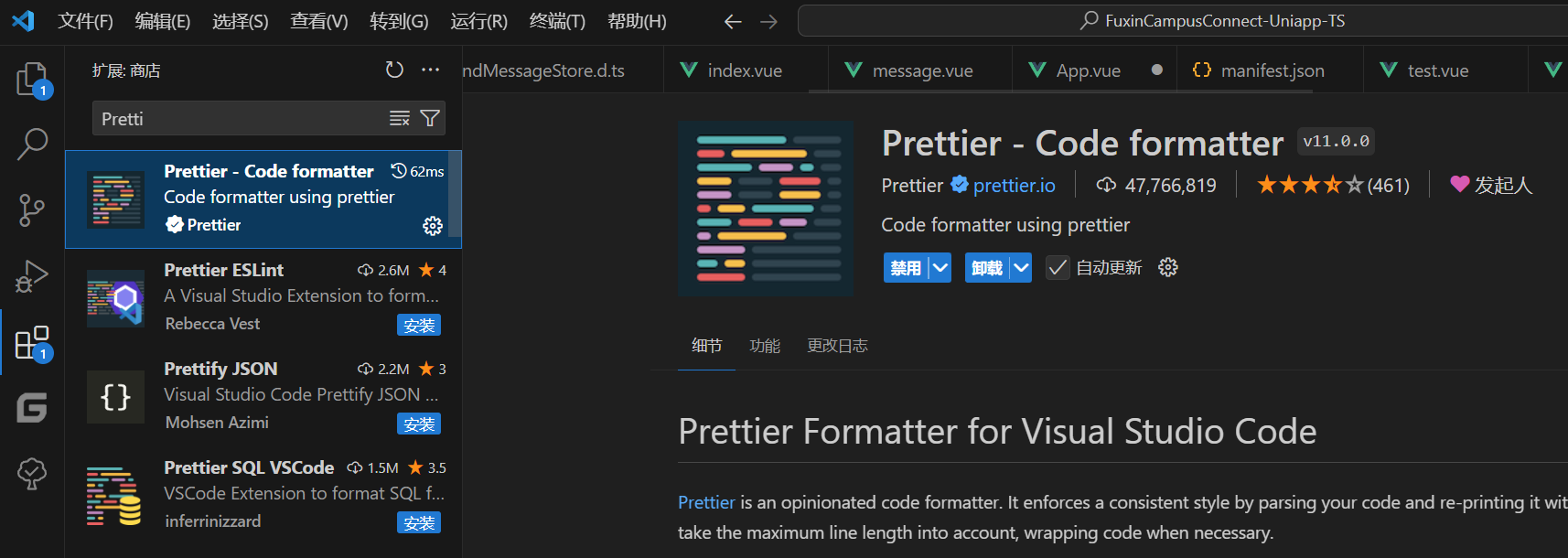
- 没有安装的直接点击安装就可以了
第二步:添加.prettierrc.json文件
- .prettierrc.json文件的主要作用就是定义自动格式化的格式
以下是我使用的
{
  "singleQuote": true,
  "semi": false,
  "printWidth": 100,
  "trailingComma": "all",
  "endOfLine": "crlf",
  "quoteProps": "as-needed",
  "tabWidth": 2
}
配置规则
配置项取值解释示例
singleQuote
true
启用单引号,默认为
false
。设置为
true
后,字符串使用单引号而不是双引号。
const message = 'Hello, world!';
semi
false
禁用分号,默认为
true
。设置为
false
后,不在行尾添加分号。
const name = 'John'
printWidth
100
设定每行的最大字符数,超过这个限制时会自动换行。默认为
80
。一行代码超过 100 个字符时会自动换行
trailingComma
'all'
控制是否添加尾随逗号。可选值:
"none"
(不添加)、
"es5"
(在 ES5 支持的地方添加)、
"all"
(在所有可能的地方添加)。
const obj = { name: 'John', age: 30, }
endOfLine
'crlf'
指定行尾符号。可选值:
"lf"
(换行符)、
"crlf"
(回车换行)、
"cr"
(回车)、
"auto"
(自动检测)。Windows 系统使用
CRLF
,Unix 系统使用
LF
quoteProps
'as-needed'
控制对象属性名是否加引号。可选值:
"as-needed"
(需要时加引号)、
"consistent"
(所有属性名加引号)、
"preserve"
(保持原样)。
{ "name": 'John', age: 30 }
(
as-needed
时,
age
没有引号)
tabWidth
2
指定缩进的空格数,默认为
2
。代码缩进为 2 个空格
第三步:添加.prettierignore文件
- prettierignore文件的作用就是指定哪些文件需要被格式化,哪些不需要
以下是我常用的
docs
dist
public
node_modules

.versionrc
auto-imports.d.ts
components.d.ts

**/dist/**
**/public/**
**/docs/**
**/node_modules/**
**/.versionrc/**
**/components.d.ts/**
**/auto-imports.d.ts/**

types/**/*
配置规则
规则描述示例
/path/to/file
忽略指定的文件路径
config/settings.json
忽略
config
目录下的
settings.json
文件
/path/to/directory/
忽略指定的目录及其所有子内容
dist/
忽略
dist
目录及其所有文件和子目录
*.extension
忽略特定文件扩展名的所有文件
*.log
忽略所有
.log
文件
**/directory/
忽略所有子目录中与指定目录名匹配的内容
**/build/
忽略所有子目录中的
build
目录
directory/file.*
忽略指定目录下匹配的所有文件类型
src/**/*.test.js
忽略
src
目录下所有
.test.js
文件
!pattern
使用
!
进行反向匹配,不忽略特定文件或目录
!important.js
表示不忽略
important.js
文件
/node_modules/
通常用于忽略第三方依赖目录
node_modules/
忽略所有依赖
/dist/
忽略打包输出目录
dist/
忽略构建生成的文件
path/**/file
忽略路径中所有子目录下匹配的文件
src/**/test.js
忽略
src
中所有子目录下的
test.js
文件
总结Prettier
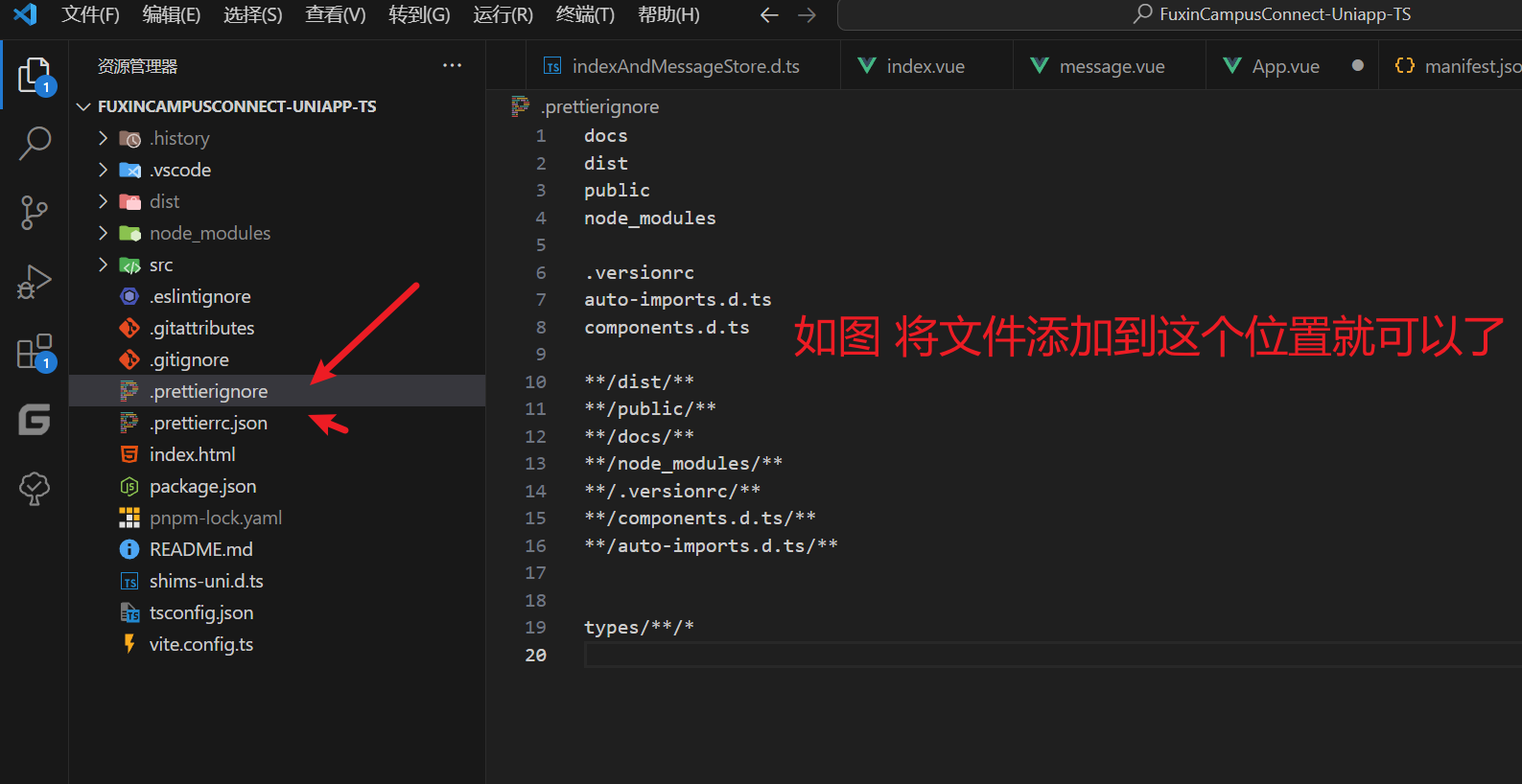
- 如图,通过安装插件、依赖。然后再项目的外面的位置添加这两个文件就能使用Prettier啦。但是光有Prettier还不够,因此我们接下来需要在vscode中的setting设置使用Prettier为自动格式化工具。
VSCode中setting设置
- 从字面意思来看也能知道setting的作用就是个性化你的VSCode,而且在项目中有一个setting设置,那么所有人都会使用统一个VSCode设置进行开发。包括但不限于:文件检索、字体大小,格式化等。
常见的setting设置
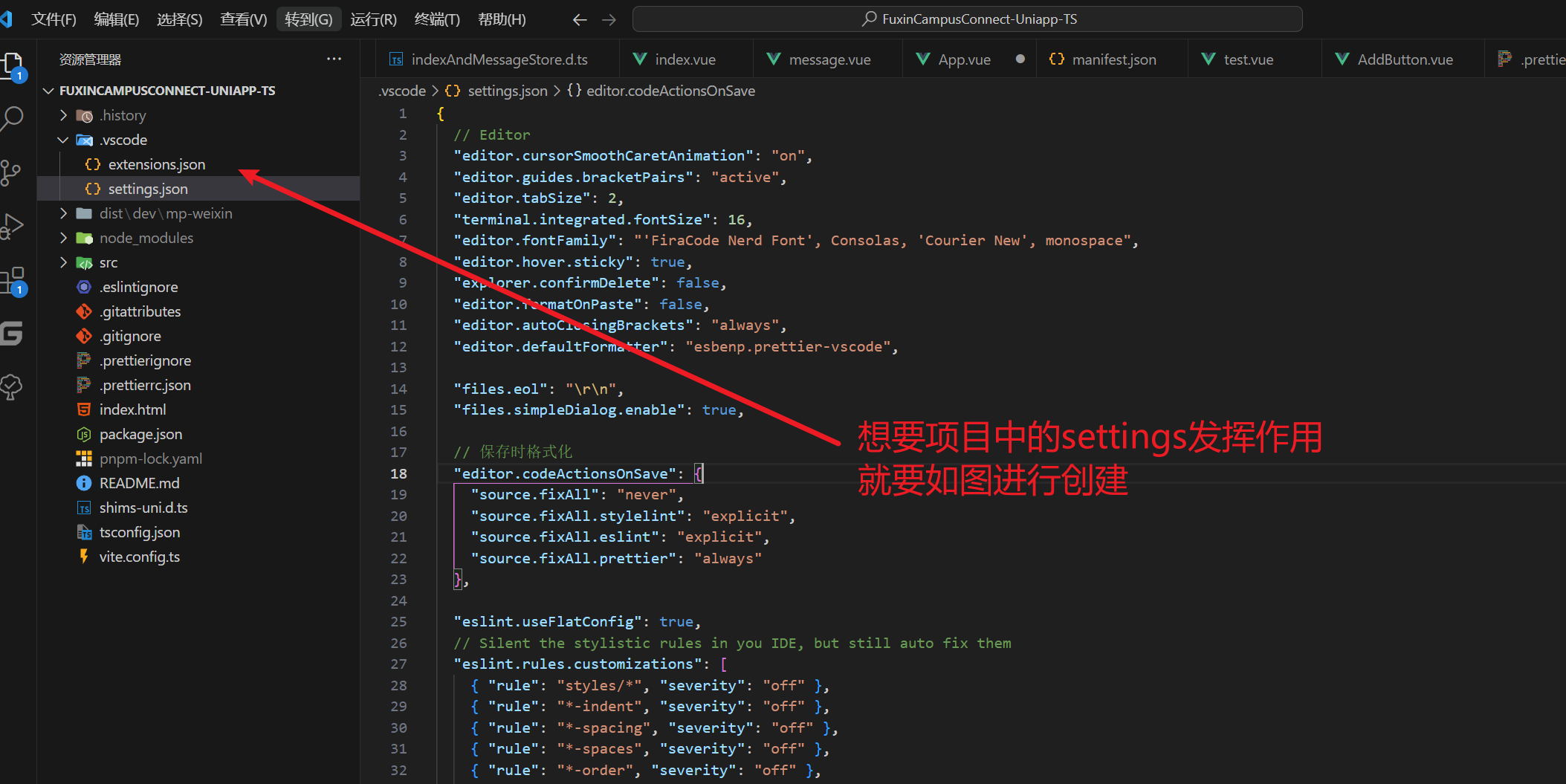
下面是我的vscode中常用的设置,我接下来会一一进行讲解
{
  // Editor
  "editor.cursorSmoothCaretAnimation": "on",
  "editor.guides.bracketPairs": "active",
  "editor.tabSize": 2,
  "terminal.integrated.fontSize": 16,
  "editor.fontFamily": "'FiraCode Nerd Font', Consolas, 'Courier New', monospace",
  "editor.hover.sticky": true,
  "explorer.confirmDelete": false,
  "editor.formatOnPaste": false,
  "editor.autoClosingBrackets": "always",
  "editor.defaultFormatter": "esbenp.prettier-vscode",

  "files.eol": "\r\n",
  "files.simpleDialog.enable": true,

  // 保存时格式化
  "editor.codeActionsOnSave": {
    "source.fixAll": "never",
    "source.fixAll.stylelint": "explicit",
    "source.fixAll.eslint": "explicit",
    "source.fixAll.prettier": "always"
  },

  "eslint.useFlatConfig": true,
  // Silent the stylistic rules in you IDE, but still auto fix them
  "eslint.rules.customizations": [
    { "rule": "styles/*", "severity": "off" },
    { "rule": "*-indent", "severity": "off" },
    { "rule": "*-spacing", "severity": "off" },
    { "rule": "*-spaces", "severity": "off" },
    { "rule": "*-order", "severity": "off" },
    { "rule": "*-dangle", "severity": "off" },
    { "rule": "*-newline", "severity": "off" },
    { "rule": "*quotes", "severity": "off" },
    { "rule": "*semi", "severity": "off" }
  ],

  // Enable eslint for all supported languages
  "eslint.validate": [
    "javascript",
    "javascriptreact",
    "typescript",
    "typescriptreact",
    "vue",
    "html",
    "markdown",
    "json",
    "jsonc",
    "yaml"
  ],

  // 文件格式化配置
  "[json]": {
    "editor.defaultFormatter": "esbenp.prettier-vscode"
  },
  // 配置语言的文件关联
  "files.associations": {
    "pages.json": "jsonc", // pages.json 可以写注释
    "manifest.json": "jsonc" // manifest.json 可以写注释
  },

  // 隐藏文件,净化工作区可见文件
  "files.exclude": {
    // "**/.git": true,
    // "**/.svn": true,
    // "**/.hg": true,
    // "**/CVS": true,
    // "**/.DS_Store": true,
    // "**/Thumbs.db": true,
    // ".vite-cache": true,
    // ".npmrc": true,
    // ".stylelintignore": true,
    // "package-lock.json": true,
    // "config/vite.config.js.*": true,
    // "src/vite-env.d.ts": true,
    // "shims-uni.d.ts": true,
    // "**/shime-uni.d.ts": true,
    // "**/env.d.ts": true,
    // "vite.config.ts.timestamp-*": true,
    // "pnpm-lock.yaml": true
  },

  // 搜索时,排除文件
  "search.exclude": {
    "**/dist": true,
    "**/public": true,
    "**/.git": true,
    "**/.svn": true,
    "**/.hg": true,
    "**/CVS": true,
    "**/.DS_Store": true,
    "**/auto-imports.d.ts": true,
    "config/vite.config.js.*": true,
    "**/components.d.ts": true,
    "**/node_modules": true,
    "**/Thumbs.db": true,
    ".vite-cache": true,
    ".eslintignore": true,
    ".stylelintignore": true,
    ".prettierignore": true,
    "package-lock.json": true,
    ".editorconfig": true,
    ".gitignore": true
  }
}
配置解释
1. 编辑器配置 (
editor
部分)
  // Editor
  "editor.cursorSmoothCaretAnimation": "on",
  "editor.guides.bracketPairs": "active",
  "editor.tabSize": 2,
  "terminal.integrated.fontSize": 16,
  "editor.fontFamily": "'FiraCode Nerd Font', Consolas, 'Courier New', monospace",
  "editor.hover.sticky": true,
  "explorer.confirmDelete": false,
  "editor.formatOnPaste": false,
  "editor.autoClosingBrackets": "always",
  "editor.defaultFormatter": "esbenp.prettier-vscode",

  "files.eol": "\r\n",
  "files.simpleDialog.enable": true,
设置项值描述
editor.cursorSmoothCaretAnimation
"on"
启用光标的平滑动画,使光标移动时更加顺滑。
editor.guides.bracketPairs
"active"
高亮匹配的括号对,
"active"
表示仅高亮当前活动的括号对。
editor.tabSize
2
设置 Tab 键的缩进空格数为 2。
terminal.integrated.fontSize
16
设置 VSCode 集成终端的字体大小为 16。
editor.fontFamily
'FiraCode Nerd Font', Consolas, 'Courier New', monospace
设置编辑器使用的字体系列,优先使用
'FiraCode Nerd Font'
。
editor.hover.sticky
true
使得代码提示信息在鼠标悬停时不自动消失。
explorer.confirmDelete
false
禁用删除文件时的确认提示对话框。
editor.formatOnPaste
false
禁用粘贴内容时自动格式化。
editor.autoClosingBrackets
"always"
设置自动补全括号功能始终开启。
editor.defaultFormatter
"esbenp.prettier-vscode"
指定使用 Prettier 扩展作为默认的代码格式化工具。
- 这部分有一部分是界面美化,个人使用体验良好,推荐按照我的设置
2. 保存时格式化的配置 (
editor.codeActionsOnSave
)
  // 保存时格式化
  "editor.codeActionsOnSave": {
    "source.fixAll": "never",
    "source.fixAll.stylelint": "explicit",
    "source.fixAll.eslint": "explicit",
    "source.fixAll.prettier": "always"
  },
设置项值描述
source.fixAll
"never"
保存时不应用任何自动修复操作。
source.fixAll.stylelint
"explicit"
保存时仅在显式请求时应用
stylelint
的自动修复操作。
source.fixAll.eslint
"explicit"
保存时仅在显式请求时应用
eslint
的自动修复操作。
source.fixAll.prettier
"always"
保存时始终应用
prettier
的自动格式化。
3. 静默 ESLint 样式规则 (
eslint.rules.customizations
)
 // Silent the stylistic rules in you IDE, but still auto fix them
  "eslint.rules.customizations": [
    { "rule": "styles/*", "severity": "off" },
    { "rule": "*-indent", "severity": "off" },
    { "rule": "*-spacing", "severity": "off" },
    { "rule": "*-spaces", "severity": "off" },
    { "rule": "*-order", "severity": "off" },
    { "rule": "*-dangle", "severity": "off" },
    { "rule": "*-newline", "severity": "off" },
    { "rule": "*quotes", "severity": "off" },
    { "rule": "*semi", "severity": "off" }
  ],
规则严重级别描述
styles/*
"off"
关闭所有与样式相关的规则(如
stylelint
),但仍允许自动修复。
*-indent
"off"
关闭与缩进相关的规则。
*-spacing
"off"
关闭与间距相关的规则(如
no-trailing-spaces
)。
*-spaces
"off"
关闭与空格相关的规则。
*-order
"off"
关闭与代码顺序相关的规则(如属性顺序)。
*-dangle
"off"
关闭与尾随逗号相关的规则(如
comma-dangle
)。
*-newline
"off"
关闭与换行相关的规则(如行尾换行)。
*quotes
"off"
关闭与引号样式相关的规则(如单引号与双引号的选择)。
*semi
"off"
关闭与分号相关的规则(如是否强制分号)。
4. 文件配置 (
files
部分)
设置项值描述
files.eol
"\r\n"
设置文件的行尾符号为 CRLF(适用于 Windows)。
files.simpleDialog.enable
true
启用简单对话框模式,替代默认的复杂对话框。
files.associations
{ "pages.json": "jsonc", "manifest.json": "jsonc" }
将
pages.json
和
manifest.json
文件关联为
jsonc
以支持注释。
files.exclude
{ ... }
隐藏指定的文件和目录,以保持工作区清洁。
5. ESLint 配置 (
eslint
部分)
设置项值描述
eslint.useFlatConfig
true
启用新的 Flat Config ESLint 配置模式。
eslint.rules.customizations
[ { "rule": "...", "severity": "off" }, ... ]
关闭所有样式相关的 ESLint 规则,但仍允许自动修复。
eslint.validate
[ "javascript", "typescript", ... ]
配置 ESLint 验证的语言和文件类型,如 JavaScript、TypeScript、Vue 等。
- 是的
6. 搜索和隐藏文件配置 (
files.exclude
和
search.exclude
部分)
设置项值描述
files.exclude
{ ... }
隐藏工作区中的指定文件和目录,例如
.git
、
node_modules
、
package-lock.json
等。
search.exclude
{ ... }
在搜索时排除指定的文件和目录,例如
dist
、
public
、
node_modules
、
.git
等。
7.清爽界面
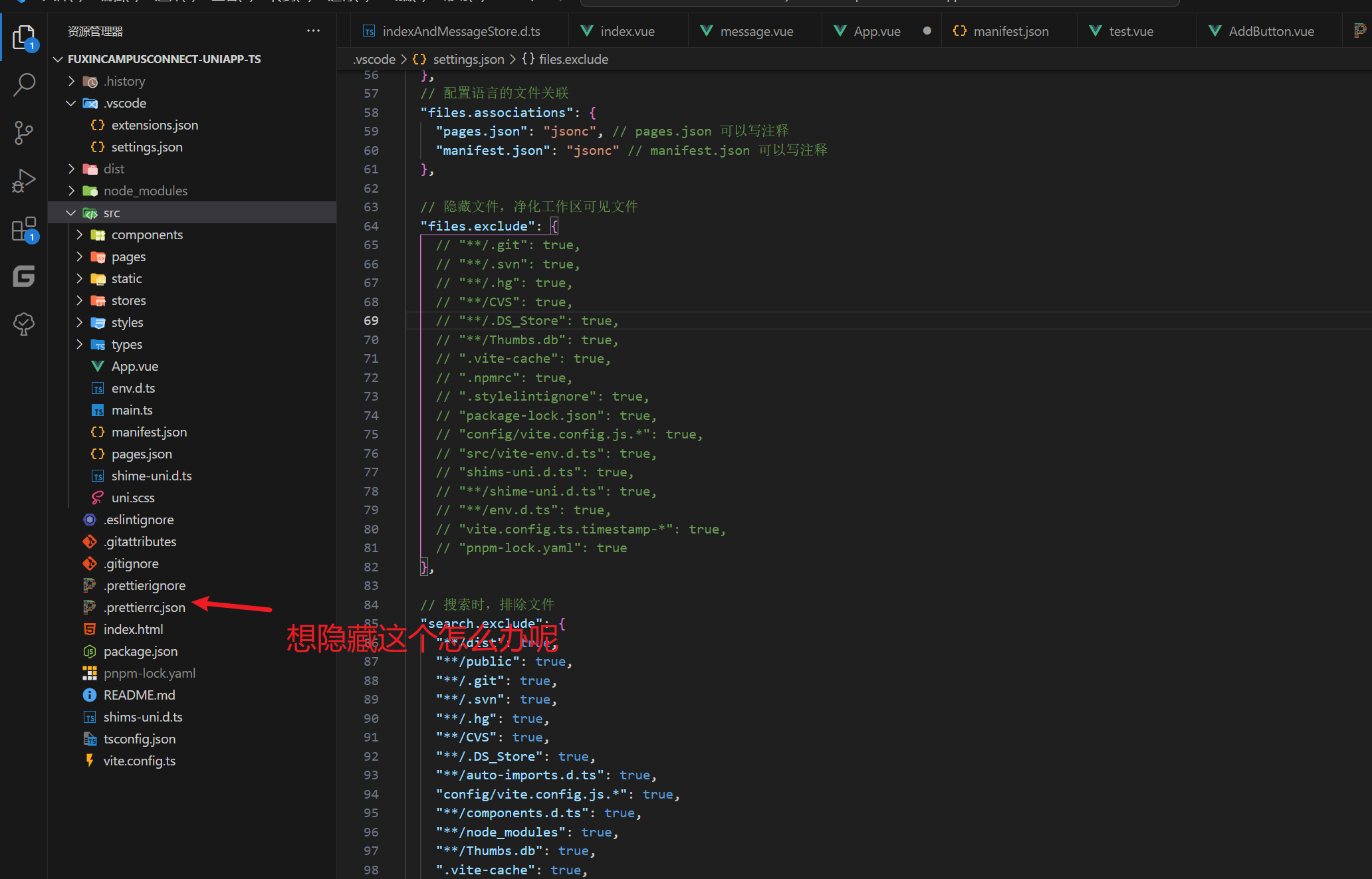
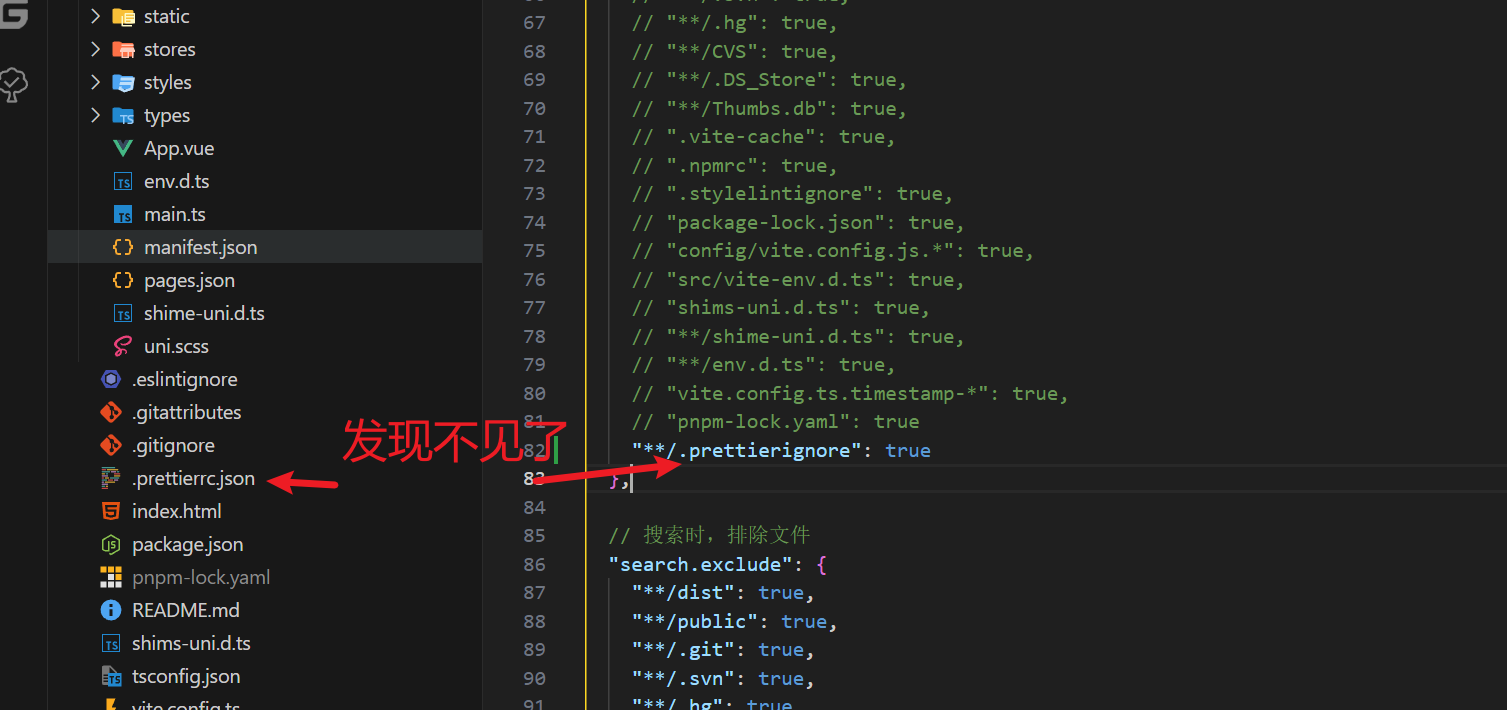
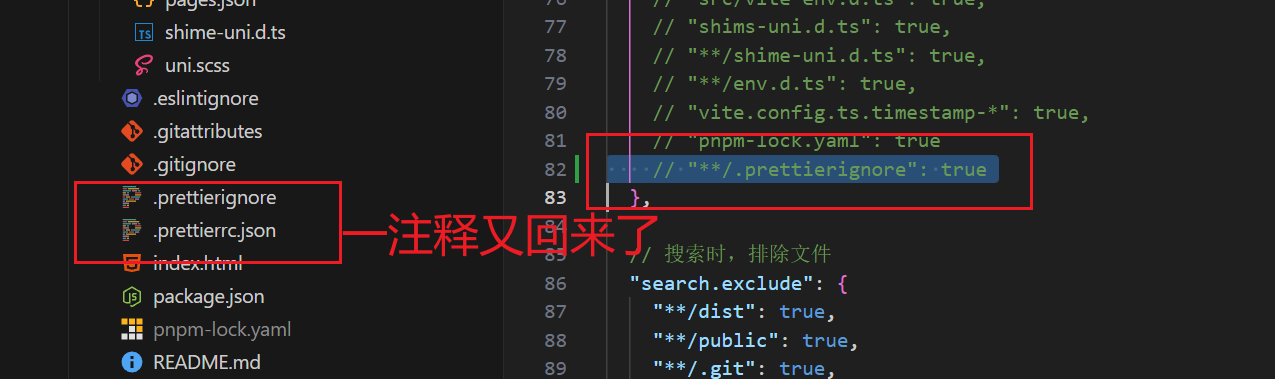
- 这部分就是
files.exclude中,在文件配置那
结尾
- vscode设置中比较经常使用的应该就是编译器、搜索方位、自动保存、隐藏文件等几个项了
- 有了ESLient自动校验格式和Prettier自动保存格式,至此前端的项目开发再无后顾之忧,开发效率大大提高,项目代码规范良好。


你好,我是Qiuner. 为帮助别人少走弯路而写博客
这是我的 github https://github.com/Qiuner ⭐️
gitee https://gitee.com/Qiuner 🌹
如果本篇文章帮到了你 不妨点个赞吧~ 我会很高兴的 😄 (^ ~ ^)
想看更多 那就点个关注吧 我会尽力带来有趣的内容 😎
代码都在github或gitee上,可以去上面自行下载
如果你遇到了问题,自己没法解决,可以去我掘金评论区问。私信看不完,CSDN评论区可能会漏看 掘金账号 https://juejin.cn/user/1942157160101860 掘金账号
本人提供开发、代码讲解等服务。有意可点击文末微信号联系
更多专栏订阅:
- 📊 一图读懂系列
- 📝 一文读懂系列
- ⚽ Uniapp
- 🌟 持续更新
- 🤩 Vue项目实战
- 🚀 JavaWeb
- 🎨 设计模式
- 📡 计算机网络
- 🎯 人生经验
- 🔍 软件测试
掘金账号 CSDN账号
感谢订阅专栏 三连文章
版权归原作者 Qiuner 所有, 如有侵权,请联系我们删除。