
基于前端的高效计时器工具实现与优化指南【附保姆级代码】
在前端开发中,计时器是一个常见的工具,广泛应用于倒计时、定时任务、间隔刷新等场景。本文将介绍如何在前端实现一个通用的计时器工具,并通过实例深入探讨其优化和应用。
一、计时器的基本概念
计时器(Timer)通常用于执行延迟或定期执行的任务。浏览器中,计时器的实现依赖于JavaScript的两个核心函数:
setTimeout
和
setInterval
。它们分别用于设置一次性延迟任务和周期性任务。
1.1
setTimeout
和
setInterval
的区别
setTimeout: 用于在指定时间之后执行某个函数。只执行一次。setInterval: 用于每隔指定时间重复执行某个函数。会反复执行,直到通过clearInterval取消。
// setTimeout 示例setTimeout(()=>{
    console.log("这是一次性延迟任务");},1000);// setInterval 示例const intervalId =setInterval(()=>{
    console.log("这是每隔一秒的周期任务");},1000);// 清除 setIntervalsetTimeout(()=>{clearInterval(intervalId);// 取消周期任务
    console.log("周期任务已取消");},5000);
二、创建一个通用的计时器工具
为了使计时器更具灵活性和可复用性,我们可以封装一个计时器类,使其能够处理多种定时任务需求,例如倒计时、间隔任务等。
2.1 计时器类的设计
我们将创建一个
Timer
类,该类支持开始、暂停、继续、重置等操作。
classTimer{constructor(callback, interval){this.callback = callback;// 要执行的回调函数this.interval = interval;// 间隔时间(毫秒)this.timerId =null;// 计时器IDthis.remaining = interval;// 剩余时间(用于暂停功能)this.paused =false;// 记录是否暂停状态}start(){if(!this.paused){this.remaining =this.interval;}this.timerId =setTimeout(()=>{this.callback();this.start();// 重复启动},this.remaining);this.paused =false;}pause(){if(this.timerId){clearTimeout(this.timerId);// 清除当前计时器this.remaining -=newDate()-this.startTime;// 计算剩余时间this.paused =true;}}resume(){if(this.paused){this.startTime =newDate();// 记录恢复时的时间this.start();// 继续启动计时器}}reset(){clearTimeout(this.timerId);// 清除当前计时器this.remaining =this.interval;// 重置剩余时间this.paused =false;this.start();// 重新启动}}
2.2 使用计时器类
// 定义一个简单的回调函数functiontask(){
    console.log("任务执行中...");}// 创建一个每隔3秒执行任务的计时器const timer =newTimer(task,3000);// 启动计时器
timer.start();// 暂停计时器(例如5秒后暂停)setTimeout(()=>{
    timer.pause();
    console.log("计时器已暂停");},5000);// 继续计时器(例如8秒后继续)setTimeout(()=>{
    timer.resume();
    console.log("计时器已继续");},8000);// 重置计时器(例如12秒后重置)setTimeout(()=>{
    timer.reset();
    console.log("计时器已重置");},12000);
三、优化与性能考量
3.1 避免回调地狱
在复杂的计时器应用中,多个
setTimeout
或
setInterval
的嵌套可能会导致代码难以维护,形成“回调地狱”。为了避免这种问题,建议使用
Promise
或
async/await
来处理异步任务。
// 使用Promise链来避免回调地狱functiondelay(ms){returnnewPromise(resolve=>setTimeout(resolve, ms));}asyncfunctionrunTasks(){awaitdelay(1000);
    console.log("任务1完成");awaitdelay(2000);
    console.log("任务2完成");awaitdelay(3000);
    console.log("任务3完成");}runTasks();
3.2 资源管理与内存泄漏
在长时间运行的任务中,未及时清理的计时器可能会导致内存泄漏。因此,在不再需要计时器时,务必使用
clearTimeout
或
clearInterval
来释放资源。
const timerId =setInterval(()=>{
    console.log("周期任务");},1000);// 某些条件下取消计时器if(/* 条件满足 */){clearInterval(timerId);// 防止内存泄漏}
四、实际应用场景
4.1 倒计时功能
计时器可以用于创建倒计时工具,常用于倒计时结束后触发某些操作,如按钮解锁或页面跳转。
functioncountdown(duration, display){let timer = duration, minutes, seconds;setInterval(()=>{
        minutes = Math.floor(timer /60);
        seconds = timer %60;
        minutes = minutes <10?"0"+ minutes : minutes;
        seconds = seconds <10?"0"+ seconds : seconds;
        display.textContent = minutes +":"+ seconds;if(--timer <0){
            timer =0;
            console.log("倒计时结束");}},1000);}// 使用倒计时工具
window.onload=()=>{const display = document.querySelector('#time');countdown(60*5, display);// 5分钟倒计时};
4.2 动态页面刷新
在需要动态更新页面内容的场景,如实时数据刷新、广告轮播等,可以使用
setInterval
来实现周期性刷新。
// 每隔5秒刷新页面内容setInterval(()=>{fetch('https://api.example.com/data').then(response=> response.json()).then(data=>{
            document.querySelector('#data').textContent =JSON.stringify(data);});},5000);
五、计时器与动画
计时器在前端动画中也有着广泛的应用,特别是在需要控制时间进度的情况下。通过
requestAnimationFrame
,我们可以实现更流畅的动画效果,相较于
setTimeout
和
setInterval
,它的性能更佳。
5.1
requestAnimationFrame
的优势
与传统的计时器不同,
requestAnimationFrame
会根据屏幕刷新率来进行动画帧的回调,从而提供更平滑的动画体验。它的调用频率通常为每秒60次(每帧约16ms),并且能在页面不可见时自动暂停,节省资源。
let start =null;functionstep(timestamp){if(!start) start = timestamp;const progress = timestamp - start;// 更新动画进度,这里假设目标是100px的位置const element = document.querySelector('#animate');
    element.style.transform ='translateX('+ Math.min(progress /10,100)+'px)';if(progress <1000){// 动画持续1秒
        window.requestAnimationFrame(step);}}// 启动动画
window.requestAnimationFrame(step);
在该示例中,
requestAnimationFrame
动态计算了动画进度,确保动画随着时间的推进顺滑进行。同时,它避免了在性能较差的设备上跳帧的问题。
5.2 控制复杂动画
对于复杂的动画,如逐帧渲染或同时控制多个元素的动画,计时器和
requestAnimationFrame
的组合能够很好地控制动画的同步与执行。以下是一个控制多个元素同时动画的例子:
const elements = document.querySelectorAll('.box');let start =null;functionanimateBoxes(timestamp){if(!start) start = timestamp;const progress = timestamp - start;

    elements.forEach((el, index)=>{const offset = Math.min(progress /(index +1)*0.1,100);// 不同速度的动画
        el.style.transform ='translateX('+ offset +'px)';});if(progress <2000){// 2秒内完成所有动画
        window.requestAnimationFrame(animateBoxes);}}

window.requestAnimationFrame(animateBoxes);
在此例中,我们使用
requestAnimationFrame
同时控制多个元素的动画,不同元素按照不同的速度进行动画,所有动画在2秒内完成。这种方式不仅能够提供平滑的动画效果,还可以根据不同条件灵活控制动画的速度和时长。
六、计时器与用户交互
计时器工具在用户交互中也具有重要作用。常见的应用场景包括防止按钮频繁点击、表单超时提示等。我们可以通过计时器限制用户在某段时间内的操作,从而提高应用的安全性和用户体验。
6.1 防抖与节流
在处理用户频繁触发的事件时(如键盘输入、窗口大小调整),我们可以使用“防抖”(Debounce)和“节流”(Throttle)技术来优化性能。两者的核心都是通过计时器控制函数的触发频率。
- 防抖:在用户停止触发事件后,才执行对应的操作。
- 节流:控制函数的触发频率,即在一定时间间隔内只允许执行一次。
6.1.1 防抖实现
防抖主要用于像搜索框这样的场景,用户在输入时频繁触发事件,通过防抖可以确保只有输入结束后才执行请求。
functiondebounce(func, delay){let timer;returnfunction(...args){clearTimeout(timer);// 清除之前的计时器
        timer =setTimeout(()=>func.apply(this, args), delay);// 延迟执行函数};}// 示例:搜索框输入事件const searchInput = document.querySelector('#search');
searchInput.addEventListener('input',debounce((event)=>{
    console.log("搜索关键词: ", event.target.value);},500));
6.1.2 节流实现
节流更适合处理如页面滚动、窗口大小调整等事件,它能保证函数在一定的时间间隔内至多执行一次。
functionthrottle(func, limit){let inThrottle;returnfunction(...args){if(!inThrottle){func.apply(this, args);
            inThrottle =true;setTimeout(()=> inThrottle =false, limit);}};}// 示例:窗口大小调整事件
window.addEventListener('resize',throttle(()=>{
    console.log("窗口尺寸变化");},200));
通过防抖和节流技术,计时器工具能够有效减少不必要的函数调用,提升性能,尤其是在复杂的用户交互场景中。
七、计时器在游戏开发中的应用
计时器在游戏开发中也扮演了重要的角色,用于控制游戏角色的动作、倒计时机制、动画帧的更新等。通常,游戏开发需要精确控制动画和交互的时间,
setInterval
和
requestAnimationFrame
是游戏中最常用的计时器工具。
7.1 控制游戏角色的动作
在游戏中,角色的动作往往依赖于时间控制。我们可以使用计时器来控制角色的移动和状态更新。
let position =0;let direction =1;functionmoveCharacter(){
    position += direction *5;if(position >300|| position <0){
        direction *=-1;// 碰到边界反转方向}
    document.querySelector('#character').style.transform =`translateX(${position}px)`;}setInterval(moveCharacter,100);
7.2 倒计时与游戏结束
倒计时功能可以用于控制游戏的时长或触发某些事件,如游戏结束或任务超时。
let timeRemaining =60;// 游戏时间60秒functioncountdown(){if(timeRemaining >0){
        timeRemaining--;
        document.querySelector('#timer').textContent =`剩余时间: ${timeRemaining}秒`;}else{clearInterval(timerId);
        console.log("游戏结束");}}const timerId =setInterval(countdown,1000);
在这个例子中,游戏中的倒计时每秒更新一次,倒计时结束后触发游戏结束的逻辑。这种方式能够通过计时器轻松实现游戏内的时间控制。
八、计时器与异步操作的结合
在前端开发中,计时器与异步操作(如网络请求、文件加载等)的结合是常见需求。在这些场景中,计时器可以用来超时控制、轮询请求等。
8.1 超时控制
对于某些网络请求或资源加载,我们可能希望在一定时间内完成任务,如果超时则中止操作。我们可以使用
setTimeout
来实现这一功能。
functionfetchDataWithTimeout(url, timeout){returnnewPromise((resolve, reject)=>{const timer =setTimeout(()=>{reject(newError('请求超时'));}, timeout);fetch(url).then(response=> response.json()).then(data=>{clearTimeout(timer);// 请求成功,清除超时计时器resolve(data);}).catch(err=>{clearTimeout(timer);reject(err);});});}// 示例:设置请求超时时间为3秒fetchDataWithTimeout('https://api.example.com/data',3000).then(data=> console.log(data)).catch(err=> console.error(err));
8.2 轮询请求
在某些场景下,我们需要不断地发送请求获取最新数据。使用
setInterval
可以轻松实现轮询请求。
functionpollData(url, interval){setInterval(()=>{fetch(url).then(response=> response.json()).then(data=>{
                console.log("最新数据:", data);});}, interval);}// 每隔5秒轮询一次pollData('https://api.example.com/data',5000);
通过这种方式,我们可以定期向服务器发送请求,获取最新的数据状态。
九、计时器工具的跨浏览器兼容性
尽管现代浏览器对
setTimeout
、
setInterval
以及
requestAnimationFrame
的支持较为一致,但在某些低版本浏览器中仍可能存在一些差异。为了确保计时器工具能够在各类浏览器中正常运行,建议开发者在开发过程中引入一些兼容性处理。
9.1 兼容性注意事项
requestAnimationFrame的兼容处理:在较旧的浏览器中,可能需要添加前缀或者使用setTimeout作为回退机制。
window.requestAnimationFrame = window.requestAnimationFrame ||
                               window.mozRequestAnimationFrame ||
                               window.webkitRequestAnimationFrame ||
                               window

.msRequestAnimationFrame ||function(callback){returnsetTimeout(callback,1000/60);// 60fps的回退机制};
- 性能调优:对于性能要求较高的应用场景,开发者需要小心避免多个高频率的计时器在同一时间运行。可以通过减少不必要的计时器、优化代码逻辑等手段,确保计时器工具不会成为性能瓶颈。
十、结语
计时器工具是前端开发中不可或缺的工具,不论是在控制时间、动画执行,还是在异步操作的超时控制、数据轮询等场景下,计时器的应用都非常广泛。通过合理的设计与优化,计时器能够帮助开发者高效地完成各类复杂的时间控制任务。
附录
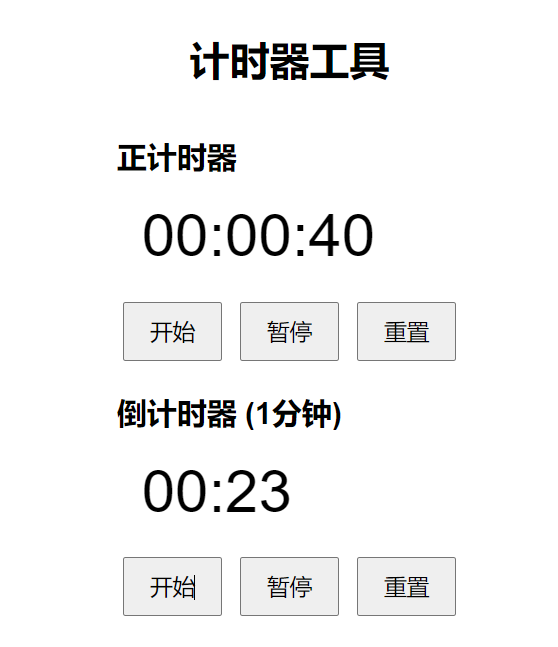
完整计时器代码如下
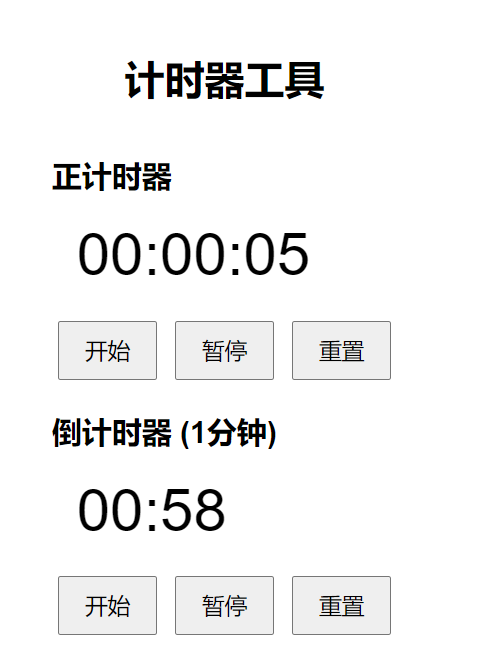
<!DOCTYPEhtml><htmllang="zh-CN"><head><metacharset="UTF-8"><metaname="viewport"content="width=device-width, initial-scale=1.0"><title>前端计时器工具</title><style>body{font-family: Arial, sans-serif;display: flex;flex-direction: column;align-items: center;justify-content: center;height: 100vh;}.timer{font-size: 48px;margin: 20px;}button{padding: 10px 20px;font-size: 18px;margin: 5px;}</style></head><body><h1>计时器工具</h1><!-- 正计时器 --><div><h2>正计时器</h2><divclass="timer"id="stopwatch">00:00:00</div><buttonid="startStopwatch">开始</button><buttonid="pauseStopwatch">暂停</button><buttonid="resetStopwatch">重置</button></div><!-- 倒计时器 --><div><h2>倒计时器 (1分钟)</h2><divclass="timer"id="countdown">01:00</div><buttonid="startCountdown">开始</button><buttonid="pauseCountdown">暂停</button><buttonid="resetCountdown">重置</button></div><script>// 正计时器代码let stopwatchInterval;let stopwatchTime =0;const stopwatchDisplay = document.getElementById("stopwatch");

        document.getElementById("startStopwatch").addEventListener("click",function(){clearInterval(stopwatchInterval);
            stopwatchInterval =setInterval(()=>{
                stopwatchTime++;const hours =String(Math.floor(stopwatchTime /3600)).padStart(2,'0');const minutes =String(Math.floor((stopwatchTime %3600)/60)).padStart(2,'0');const seconds =String(stopwatchTime %60).padStart(2,'0');
                stopwatchDisplay.textContent =`${hours}:${minutes}:${seconds}`;},1000);});

        document.getElementById("pauseStopwatch").addEventListener("click",function(){clearInterval(stopwatchInterval);});

        document.getElementById("resetStopwatch").addEventListener("click",function(){clearInterval(stopwatchInterval);
            stopwatchTime =0;
            stopwatchDisplay.textContent ="00:00:00";});// 倒计时器代码let countdownInterval;let countdownTime =60;const countdownDisplay = document.getElementById("countdown");

        document.getElementById("startCountdown").addEventListener("click",function(){clearInterval(countdownInterval);
            countdownInterval =setInterval(()=>{if(countdownTime >0){
                    countdownTime--;const minutes =String(Math.floor(countdownTime /60)).padStart(2,'0');const seconds =String(countdownTime %60).padStart(2,'0');
                    countdownDisplay.textContent =`${minutes}:${seconds}`;}else{clearInterval(countdownInterval);alert("倒计时结束!");}},1000);});

        document.getElementById("pauseCountdown").addEventListener("click",function(){clearInterval(countdownInterval);});

        document.getElementById("resetCountdown").addEventListener("click",function(){clearInterval(countdownInterval);
            countdownTime =60;
            countdownDisplay.textContent ="01:00";});</script></body></html>
运行效果如下
版权归原作者 一键难忘 所有, 如有侵权,请联系我们删除。