



🌅1. 问题描述
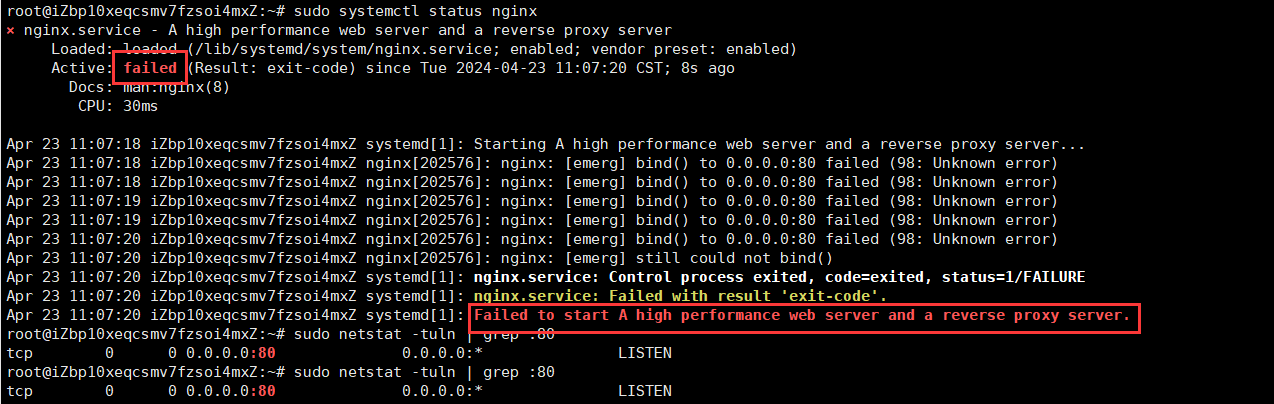
在启动nginx服务的时候显示内容如下:
sudo systemctl status nginx
问题出现原因:
根据日志显示,Nginx 服务启动失败,主要原因是无法绑定到端口 80。这通常是由于该端口已被
其他进程占用而导致的。
🌊2. 解决方案
要解决此问题,可以执行以下步骤:
确认端口 80 是否被其他进程占用。可以使用以下命令检查:
sudo netstat -tuln | grep :80
该命令会列出正在监听端口 80 的进程。如果有其他进程在使用该端口,显示如下:

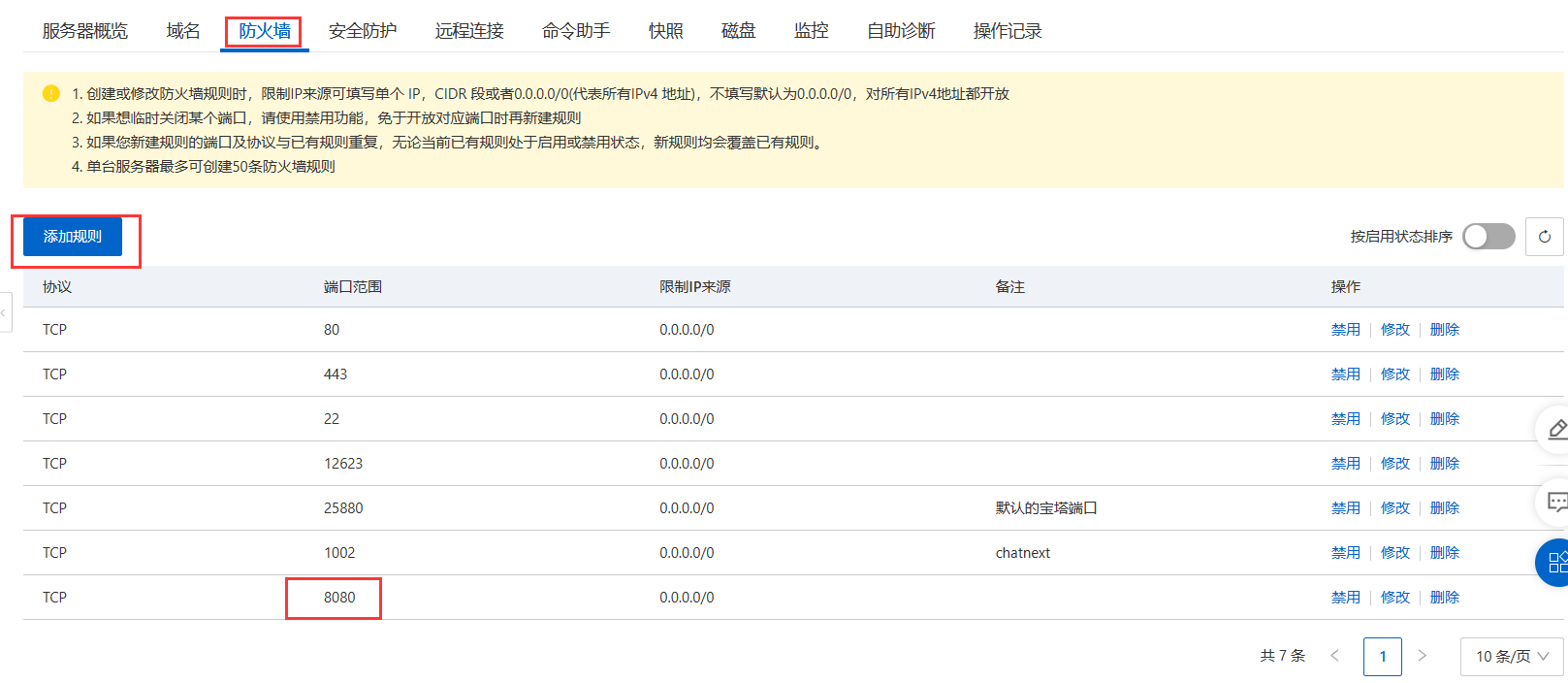
打开配置文件:可以将80端口【默认端口】修改为 8080 端口【当然也可以是其他的,不过要记得去防火墙添加规则(即添加端口)】
比如我添加的是 8080 端口,则添加规则如下(红框内容):
可以使用以下命令打开配置文件:
sudo nano /etc/nginx/sites-available/*
我的配置文件内容如下【版本不同当然配置文件不同】:
##
# You should look at the following URL's in order to grasp a solid understanding
# of Nginx configuration files in order to fully unleash the power of Nginx.
# https://www.nginx.com/resources/wiki/start/
# https://www.nginx.com/resources/wiki/start/topics/tutorials/config_pitfalls/
# https://wiki.debian.org/Nginx/DirectoryStructure
#
# In most cases, administrators will remove this file from sites-enabled/ and
# leave it as reference inside of sites-available where it will continue to be
# updated by the nginx packaging team.
#
# This file will automatically load configuration files provided by other
# applications, such as Drupal or Wordpress. These applications will be made
# available underneath a path with that package name, such as /drupal8.
#
# Please see /usr/share/doc/nginx-doc/examples/ for more detailed examples.
##

# Default server configuration
#
server {
    listen 80 default_server;
    listen [::]:80 default_server;

    # SSL configuration
    #
    # listen 443 ssl default_server;
    # listen [::]:443 ssl default_server;
    #
    # Note: You should disable gzip for SSL traffic.
    # See: https://bugs.debian.org/773332
    #
    # Read up on ssl_ciphers to ensure a secure configuration.
    # See: https://bugs.debian.org/765782
    #
    # Self signed certs generated by the ssl-cert package
    # Don't use them in a production server!
    #
    # include snippets/snakeoil.conf;

    root /var/www/html;

    # Add index.php to the list if you are using PHP
    index index.html index.htm index.nginx-debian.html;

    server_name _;

    location / {
        # First attempt to serve request as file, then
        # as directory, then fall back to displaying a 404.
        try_files $uri $uri/ =404;
    }

    # pass PHP scripts to FastCGI server
    #
    #location ~ \.php$ {
    #    include snippets/fastcgi-php.conf;
    #
    #    # With php-fpm (or other unix sockets):
    #    fastcgi_pass unix:/run/php/php7.4-fpm.sock;
    #    # With php-cgi (or other tcp sockets):
    #    fastcgi_pass 127.0.0.1:9000;
    #}

    # deny access to .htaccess files, if Apache's document root
    # concurs with nginx's one
    #
    #location ~ /\.ht {
    #    deny all;
    #}
}

# Virtual Host configuration for example.com
#
# You can move that to a different file under sites-available/ and symlink that
# to sites-enabled/ to enable it.
#
#server {
#    listen 80;
#    listen [::]:80;
#
#    server_name example.com;
#
#    root /var/www/example.com;
#    index index.html;
#
#    location / {
#        try_files $uri $uri/ =404;
#    }
#}
将里面的代码模块
server {
    listen 80 default_server;
    listen [::]:80 default_server;
修改成
server {
    listen 8080 default_server;
    listen [::]:8080 default_server;
完成修改!【如果其他地方还有 80 的修改成 8080 即可】。
启动Nginx服务
sudo systemctl start nginx
设置Nginx服务自启动:
sudo systemctl enable nginx
验证Nginx是否运行:
sudo systemctl status nginx

如果一切正常,输出应该是“Active: active (running)”或者类似的信息。

本文转载自: https://blog.csdn.net/m0_57532432/article/details/138117516
版权归原作者 SarPro 所有, 如有侵权,请联系我们删除。
版权归原作者 SarPro 所有, 如有侵权,请联系我们删除。