
文章目录
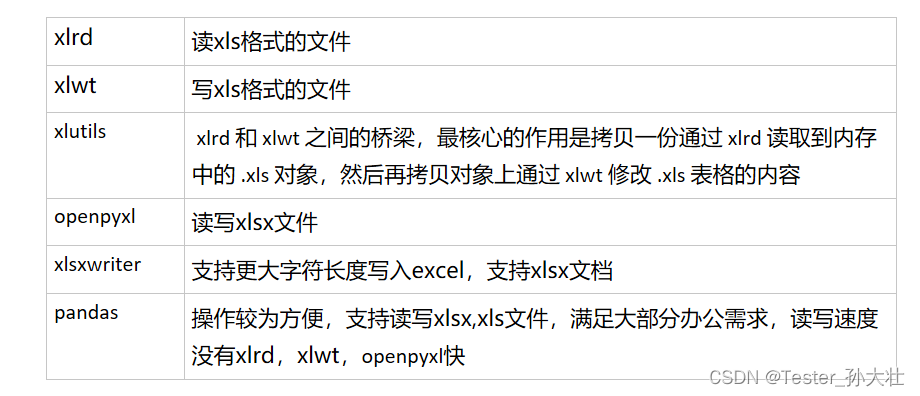
工作中每天都会和excel打交道,遇到最多的文件格式是xlsx格式和csv格式。如果通过人工处理excel一些重复操作,不仅耗时而且容易出错,通过脚本的方式可以节省很多时间,而且可以重复利用。日常工作中用到最多的是使用几个库对文档进行读写的操作,对于写xlwt是创建一个新的workbook存储被写入的数据,openpyxl是可以基于已有的workbook进行修改。下面是工作中常用的脚本总结:
csv格式
1.读取csv文件的数据
import csv

"""读取csv文件数据,保存在一个list里面,list里面是字典,key是表头,value是值"""file=r'E:\test\test.csv'
list_data =[]withopen(file,'r', newline='', encoding='utf-8')as csvFile:
    reader =list(csv.reader(csvFile))
data_title=reader[0]for i inrange(1,len(reader)):
    data_value=reader[i]
    list_data.append(dict(zip(data_title,data_value)))print(list_data)
2.写数据到csv文件
    list_title =['a','b','c']
    list_data =[['1','2','3'],[4,5,6]]
    file_path =r'E:\test\test.csv'withopen(file_path,'w', newline='')as csv_file:
        csv_writer = csv.writer(csv_file)# 写表头
        csv_writer.writerow(list_title)# 写表格的除了表头的数据for list_item in list_data:
            csv_writer.writerow(list_item)
xlsx格式
1.读取xlsx格式的数据
    file_path =r'E:\test\test.xlsx'
    sheet_name ='Sheet1'
    sheet_obj = openpyxl.load_workbook(file_path).get_sheet_by_name(sheet_name)
    nrows = sheet_obj.max_row
    ncols = sheet_obj.max_column
    key_list =[]
    final_list =[]for i inrange(1, ncols +1):# 获取第一行表头的数据
        key_list.append((sheet_obj.cell(1, i).value).lower())for i inrange(2, nrows +1):
        value_list =[]for j inrange(1, ncols +1):# 获取除了表头的其他行的数据
            value_item = sheet_obj.cell(i, j).value
            value_list.append(value_item)#     表头的数据和其他行的数据合并成字典
        list_dict =dict(zip(key_list, value_list))# 将字典放到数组中
        final_list.append(list_dict)print(final_list)
2. 写数据到xlsx文件中
    new_case_book = openpyxl.Workbook()
    new_sheet = new_case_book.create_sheet('test')
    excel_title =['a','b','c']# 写入表头的数据
    new_sheet.append(excel_title)
    list_result =[[1,2,3],[4,5,6],[7,8,9]]# 写入其他行需要的数据for i in list_result:
        new_sheet.append(i)
    max_column = new_sheet.max_column
    max_row = new_sheet.max_row
    # 设置表格的格式for i inrange(1, max_column +1):
        column = get_column_letter(i)# 设置列宽
        new_sheet.column_dimensions[column].width =30for j inrange(1, max_row +1):# 设置单元格字符格式
            new_sheet[f'{column}{j}'].font = Font(name='Microsoft Tai Le')# 设置单元格对齐
            new_sheet[f'{column}{j}'].alignment = Alignment(wrap_text=True, horizontal='left', vertical='top')
    new_case_book.save(file_path)
3. 修改xlsx文件
修改xlsx文件,使用openpyxl load_workbook后,直接赋予值给指定的单元格即可,如:
new_sheet[A1]='Dazhuang'
xls格式
1. 合并两个excel文档
有一份用例id和测试数据关联的文档和一份用例id和用例描述等其他信息关联的文档,现在想把两份文档合并,考虑到有共同的用例id,可以先将用例文档复制一份,用于编辑,测试数据文档通过用例id与用例相关联,将测试数据写在最后一列,详细示例和代码如下: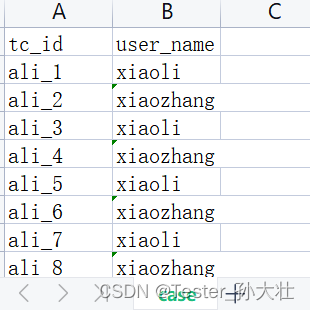
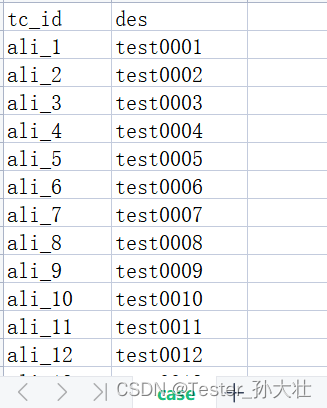
想到使用xlrd和xlutils.copy处理,生成新的文件,代码如下:
import xlrd
from xlutils.copy import copy

if __name__ =='__main__':# 取文件和保存文件的路径
    cases =r'E:\test\xlutils\test_cases.xls'
    users =r'E:\test\xlutils\tc_user.xls'
    new_case =r'E:\test\xlutils\case_new.xls'# xlrd获取原始的workbook对象,并创建副本,xlsx用openpyxl打开
    case_book = xlrd.open_workbook(cases)
    new_case_book = copy(case_book)# 打开对应的sheet页
    case_sheet = case_book.sheet_by_name('case')
    user_sheet = xlrd.open_workbook(users).sheet_by_index(0)# 获取用例sheet页的行号和列号,如果通过openpyxl,则是max_row,max_column获取行数和列数
    case_rows = case_sheet.nrows
    case_cols = case_sheet.ncols
    # 获取user sheet页的行号
    user_rows = user_sheet.nrows
    # 获取新的workbook的case页
    new_case_sheet = new_case_book.get_sheet('case')# 在新的workbook的sheet页创建user列,xlrd的第一行是0,openpyxl的第一行是1
    new_case_sheet.write(0, case_cols,'user')for i inrange(1, case_rows):for j inrange(1, user_rows):# 匹配tc_id一致if case_sheet.cell(i,0).value == user_sheet.cell(j,0).value:# 写数据到user列
                new_case_sheet.write(i, case_cols, user_sheet.cell(j,1).value)
    new_case_book.save(new_case)
最后效果图: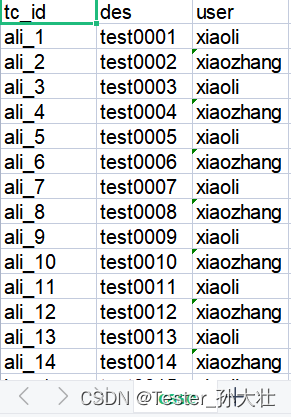
2. 提取excel文档的不同sheet页的数据
工作中可能测试用例分布在不同的sheet页,这时候手工分析测试数据,不太方便。
考虑用xlrd和openpyxl可以读取xls和xlsx,pandas直接获取sheet页中的特定列并将sheet页作为对象保存在DataFrame中,示例和详细代码如下。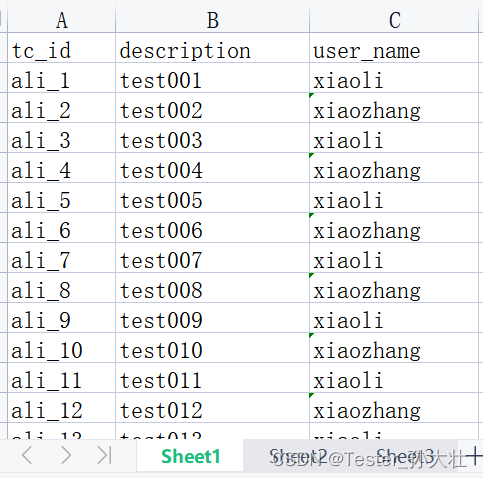
代码如下:
    test_data =r'E:\test\test_case.xls'
    data_results =r'E:\test\result.csv'# 通过xlrd获取所有sheet,如果是xlsx文档可以通过openpyxl打开,worksheets方法获取所有sheet对象# 也可以通过pandas操作 # 如下示例为通过pandas# sheets = pandas.read_excel(test_data, sheet_name=None,engine='openpyxl')
    sheets = xlrd.open_workbook(test_data).sheet_names()# pandas创建一个data模板
    all_data = pandas.DataFrame()for i in sheets:try:# pandas提取模板中的数据,因为默认的引擎是xlrd,处理xlsx需要加参数engine='openpyxl'
            df = pandas.read_excel(test_data, i, usecols=['tc_id','user_name'])# 数据模板中添加测试数据
            all_data = all_data.append(df)except Exception:print('sheet did not have according columns')
    all_data.to_csv(data_results)
结果如下图: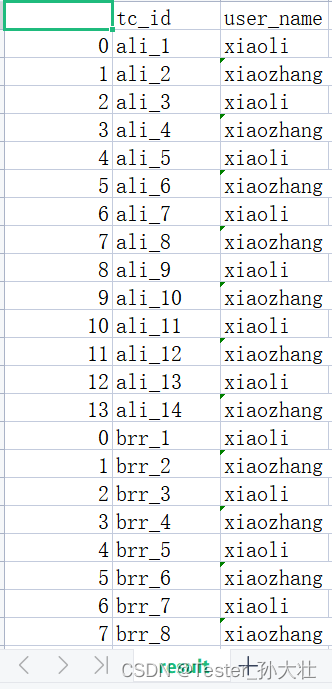
3. 将不同的文件信息,集中汇总在一个excel sheet页
有一大堆sql文件(类似下图),每个sql文件都有不超过20条常用的sql语句,工作中如果单独去看每个文件,不太方便也不利于集中分析和管理,想到将文件集中保存在excel中,一开始想到用xlwt处理,无奈xlwt处理的时候报出如下异常 String longer than 32767 characters ,意思是长度超出了xlwt处理的限制,最后选用xlsxwriter处理,代码如下:
    path =r'E:\test\db'
    path_save =r'E:\test\db\combine.xls'
    save_file = xlsxwriter.Workbook(path_save)
    save_sheet = save_file.add_worksheet('combine')
    files = os.listdir(path)
    num =0forfilein files:#将文件名保存在第一列
        save_sheet.write(num,0,str.split(file,'.')[0])#将文件内容保存在第二列
        save_sheet.write(num,1,open(path +'\\'+file).read())
        num +=1
    save_file.close()
处理效果类似于下图: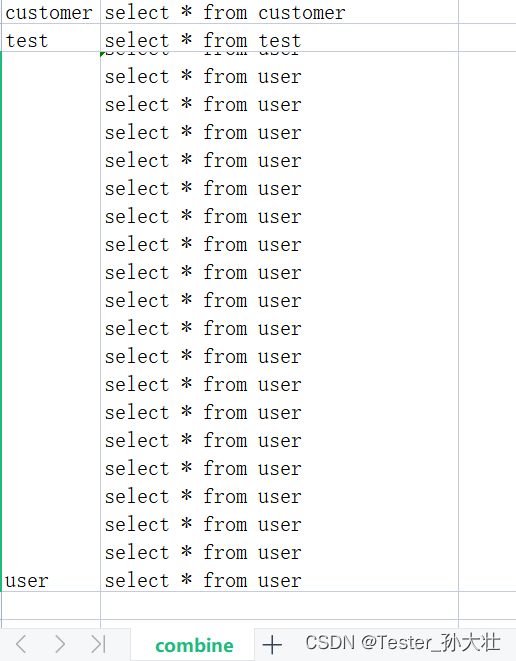
4. 将一个sheet页内容拆分到不同sheet页
测试工作常常需要留下证据,excel管理是不错的选择,但是excel中的证据如果没有测试用例和描述等信息,看留下的证据往往是一头雾水,手中正好有一份测试用例文档,可以将用例ID作为sheet页的名称,用例描述等信息保存在sheet页中,使用xlrd进行读,xlwt进行写,示例和代码如下:
测试用例大概如下图: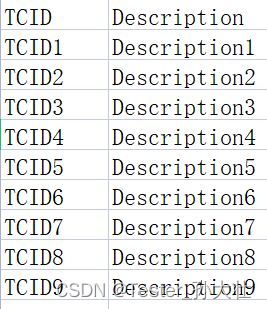
代码如下:
importxlrdimportxlwtif __name__ == '__main__':
    # 测试用例的路径
    tc_path = r'E:\test\testcase.xls'
    # 生成测试evidence模板的路径
    ev_path = r'E:\test\evidence.xls'
    # 测试用例的sheetName
    sheet_name ='Sheet1'
    # 测试用例需要生成测试模板的起始行
    row_begin_index =2
    # 测试用例需要生成测试模板的终止行
    row_end_index =10
    # 测试用例ID所在列
    tc_id_col =1
    # 测试用例必要信息的起始列
    col_begin_index =2
    # 测试用例必要信息的终止列
    col_end_index =3
    # 生成文件的单元格格式
    style = xlwt.easyxf('font:name MicrosoftTaiLe,height 200;align: wrap on,vert centre,horiz left;')
    # 新的excel book的实例对象
    evidence_book =xlwt.Workbook()
    # 新的excel的sheet对象
    sheet_object = xlrd.open_workbook(tc_path).sheet_by_name(sheet_name)
    # 通过xlrd读取测试用例excel,xlwt写入新的book中
    for i in range(row_begin_index -1, row_end_index):
        # p=0用于i新的book中从第1列开始写数据
        p =0
        new_sheet_name = sheet_object.cell(i, tc_id_col -1).value
        new_sheet = evidence_book.add_sheet(new_sheet_name, cell_overwrite_ok=True)for j in range(col_begin_index -1, col_end_index -1):
            new_sheet.write(0, p, sheet_object.cell(0, j).value, style)
            new_sheet.write(1, p, sheet_object.cell(i, j).value, style)
            # 列的宽度
            new_sheet.col(p).width =256*50
            p +=1
    evidence_book.save(ev_path)
处理后的效果如下: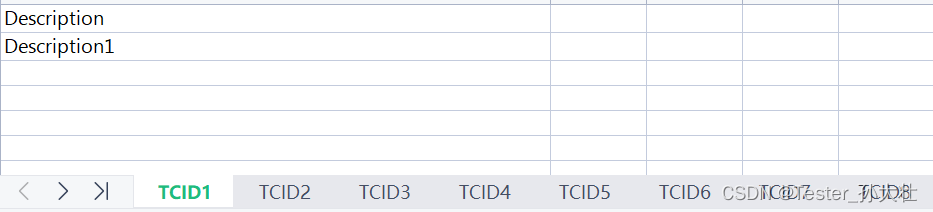
版权归原作者 Tester_孙大壮 所有, 如有侵权,请联系我们删除。