
根据提示建议,我们添加文件:
git addd .
如果我们不想要所有文件提添加可以使用
git add hello.txt
如果你现在检查版本库的状态,你会看到文件已经被添加了(又称
staged
),但还没有提交。
git status
On branch main
No commits yet
Changes to be committed:
(use “git rm --cached …” to unstage)
new file: hello.txt
为了记录这些变化,我们来提交它。
git commit -m “Add hello.txt”
[main (root-commit) a07ee27] Adds hello.txt
1 file changed, 2 insertions(+)
create mode 100644 hello.txt
git commit -m <MESSAGE>
是一个简短的命令,你可以用
git commit
打开编辑器(主要是vim),提供详细的提交描述。
检查提交记录:
git log
Author: qq449245884 44924566884@qq.com
Date: Sat Jul 17 14:57:24 2021 +0800
Add hello.txt
创建分支
在很多情况下,拥有一个独立的初始代码版本是很有用的:例如,在测试你不确定的功能时,或者在一起工作时避免代码冲突。这正是git分支的意义所在:它从历史上的一个特定点开始生长。
要创建分支,运行
git branch NAME
,要切换分支,运行
git checkout NAME
。或者简单地
git checkout -b dev # 切换到一个名为“dev”的新分支
Switched to a new branch ‘dev’
gitexample git:(dev)
我们在
Hello.txt
文件中更改一些内容并提交更改:
echo “\nHello, Git Branch” >> hello.txt &&
git commit -am “Change hello.txt”
现在,切换到主分支:
git checkout main &&
cat hello.txt
Switched to branch ‘main’
Hello, Git
正如你所看到的,文件内容仍然和原来一样。为了比较分支,我们可以运行。
git diff dev
diff --git a/hello.txt b/hello.txt
index 360c923…b7aec52 100644
— a/hello.txt
+++ b/hello.txt
@@ -1,3 +1 @@
Hello, Git
-
-Hello, Git Branch
(END)
type “:q” to close
我们在主分支中进行更改:
echo “\nHi from Main Branch” >> hello.txt &&
git commit -am “Change hello.txt from main”
[main 9b60c4b] Change hello.txt from main
1 file changed, 2 insertions(+)
现在让我们试着把这些变化合并起来。
git merge dev
Auto-merging hello.txt
CONFLICT (content): Merge conflict in hello.txt
Automatic merge failed; fix conflicts and then commit the result.
因为文件在同一个地方被修改了两次,我们就产生了冲突。看看这个文件
cat hello.txt
<<<<<<< HEAD
Hello, Git
Hi from Main Branch
=======
Hello, Git
dev
还有一个命令可以单独查看更改:
git diff --ours # :q to close
git diff --theirs #:q to close
你可以手动编辑文件并提交修改,但我们设想一下,我们只想要其中一个版本。我们就从中止合并开始。
git merge --abort
并以 "theirs"策略重新启动合并,这意味着在发生冲突时,我们将使用传入的分支所坚持的东西。
git merge -X theirs dev
Auto-merging hello.txt
Merge made by the ‘recursive’ strategy.
hello.txt | 5 ±—
1 file changed, 1 insertion(+), 4 deletions(-)
与此策略相反的是 “ours”。将这两个改动合并在一起,需要手动编辑(或使用
git mergetool
)。
查看所有分支运行的列表
git branch # type :q to close
dev
* main
最后,删除分支运行:
git branch -d dev
Deleted branch dev (was 6259828).
重置分支
分支从 git 历史中的某一点开始 “生长(grow)”,
rebase
允许改变这个点。我们再创建一个分支,并在
hello.txt
上添加一些改动。
git checkout -b story &&
echo “Once upon a time there was a file”>>story.txt &&
git add story.txt &&
git commit -m “Add story.txt”
Switched to a new branch ‘story’
[story eb996b8] Add story.txt
1 file changed, 1 insertion(+)
create mode 100644 story.txt
现在,我们回到主分支并添加更改:
git checkout main &&
echo “Other changes” >> changes.txt &&
git add changes.txt &&
git commit -m “Add changes.txt”
重置我们在
main
到
story
分支所做的更改:
git checkout story &&
git rebase main
Successfully rebased and updated refs/heads/story.
可以看到在主分支创建的新文件被添加到
story
分支。
ls
changes.txt hello.txt story.txt
注意:不要
rebase
别人可能使用过的分支,例如主分支。另外,请记住,在远程版本库上进行的每一次历史操作都需要强制这些修改生效。
远程存储库
如果你还没有,请创建一个GitHub账户,登录并创建一个新的空仓库(私有或公共)。
假设版本库的名字是 “
example
”,运行以下命令(改成你的用户名)。
git remote add origin git@github.com:USERNAME/example.git &&
git push -u origin main
你可以刷新页面,看到主分支的文件。要把所有本地分支推送到远程仓库,请运行。
git push --all origin
我们在GitHub上编辑一些东西:只要点击任何文件和铅笔图标。添加一行你想要的任何文字,然后按 “提交修改”。
在本地运行这个命令,以获得远程的变化。
git checkout main &&
git pull
管理未提交的更改
如果你想保存你的本地修改以便以后使用,你可以使用
git stash
。
分享
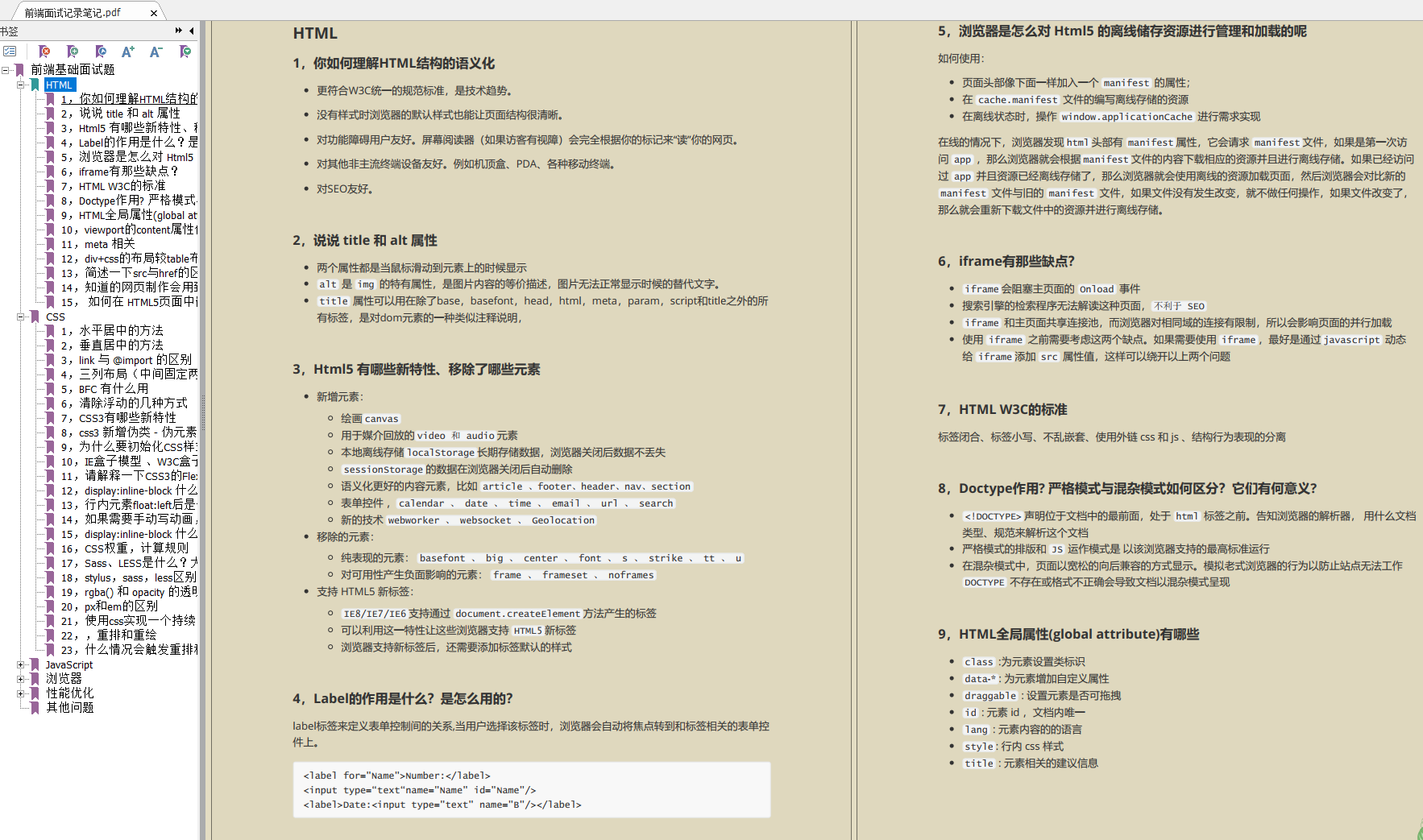
开源分享:【大厂前端面试题解析+核心总结学习笔记+真实项目实战+最新讲解视频】

版权归原作者 2401_84437691 所有, 如有侵权,请联系我们删除。